> ## Documentation Index
> Fetch the complete documentation index at: https://docs.gettap.co/llms.txt
> Use this file to discover all available pages before exploring further.
# Company settings
> Company-wide settings that affect every member.
Settings here apply to your whole company, not to individual members. Find them under **Settings** in Tap Teams.
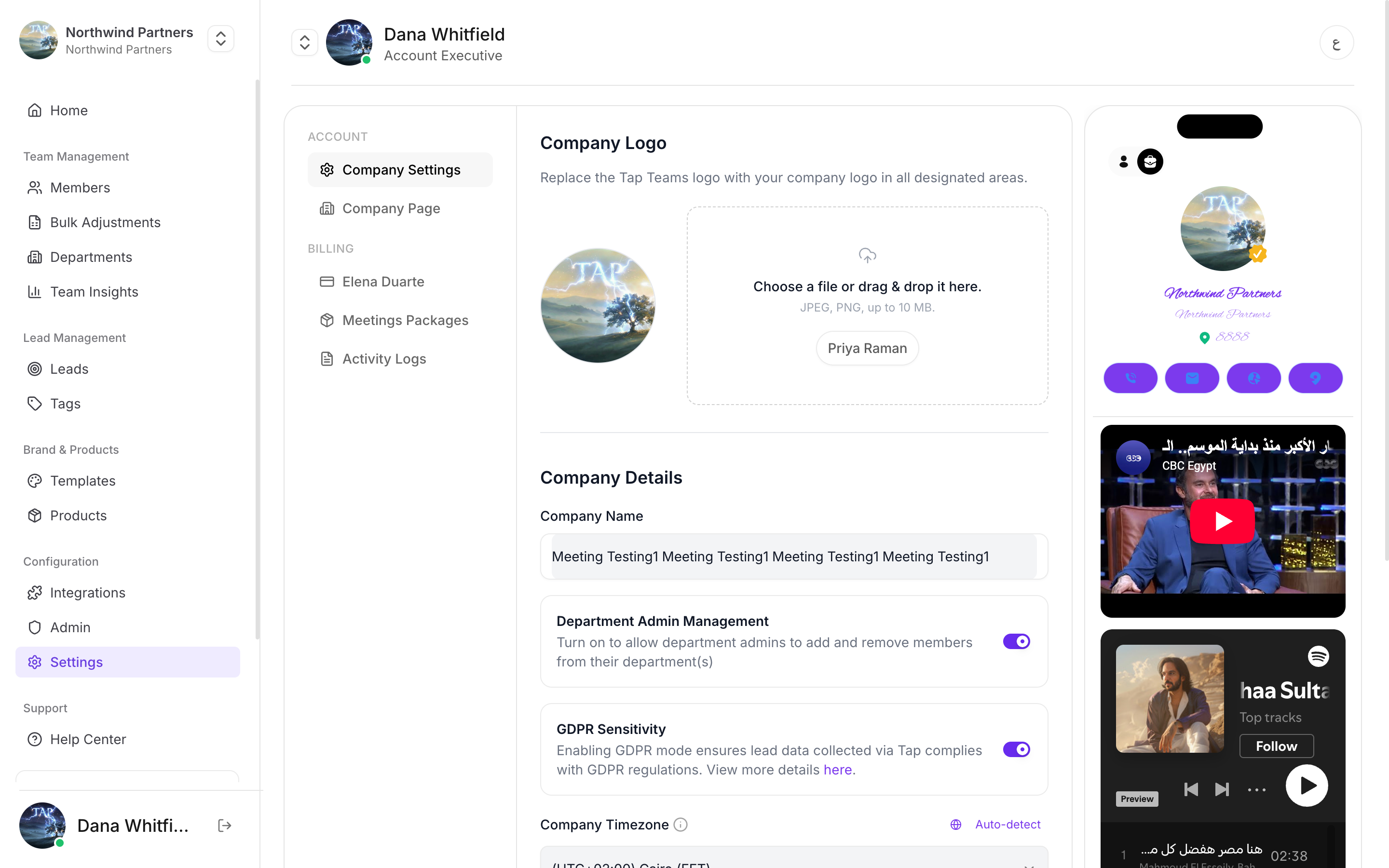
Alongside company details you'll find **My Subscription**, **Meetings Packages**, and **Activity Logs**.
## Company logo
Your logo appears across the product and on member profiles that inherit it from a [template](/en/teams/templates).
Changing the logo here doesn't overwrite a logo a member has already customised on their own profile. To make a brand change stick everywhere, set it in the template **and** lock the field in the [department](/en/teams/department-permissions).
## Company timezone
Sets the timezone [Insights](/en/insights/overview) uses to group activity into days and weeks. There's an auto-detect option if you'd rather not pick from the list.
Get this right before you start reading insights seriously. A distributed team left on the wrong timezone will see meetings landing on the wrong day, which quietly distorts every daily and weekly comparison. Set it to wherever your reporting is done, and leave it alone — changing it later shifts historical numbers and makes past comparisons unreliable.
## Department admin management
Controls whether departments can have their own admins — people who manage the profiles inside their department without being full company admins.
Off by default. Turn it on when regional or team managers should onboard their own people but shouldn't touch billing, templates, or other departments.
See [Department permissions](/en/teams/department-permissions#sub-admin-management).
## GDPR sensitivity mode
A company-wide switch for stricter handling of captured personal data. See [GDPR mode](/en/account/gdpr-mode).
## Who can change these
Company admins only. Department admins and members don't see this screen.
Settle these four during setup rather than after your first event. Timezone and department admin management in particular are much less disruptive to set correctly at the start than to change once people are relying on them.
This documentation is built and hosted on [Mintlify](https://mintlify.com), a developer documentation platform.