> ## Documentation Index
> Fetch the complete documentation index at: https://docs.gettap.co/llms.txt
> Use this file to discover all available pages before exploring further.
# HubSpot
> Sync captured leads and meeting summaries into HubSpot.
## What syncs
| Tap | HubSpot |
| - | - |
| Captured lead | Contact |
| Meeting summary and action items | Task on the contact |
| Capturing member | Contact owner |
## Connect
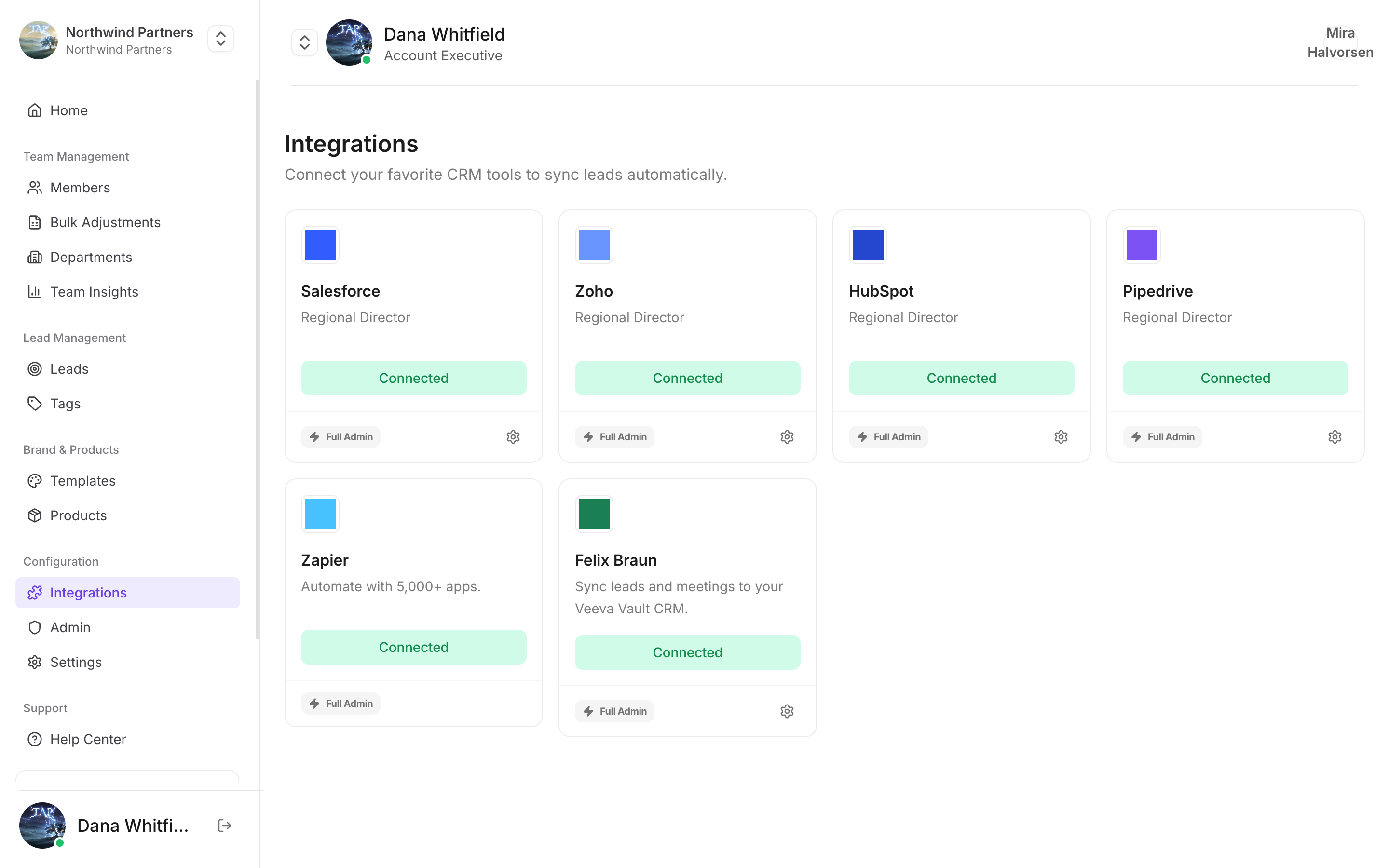
In Tap Teams, go to **Integrations → HubSpot → Connect**.
If you belong to more than one HubSpot account, check the account selector on the authorization screen before approving. Connecting a sandbox by mistake is easy to do, and it produces a working integration that sends your leads nowhere useful.
Tap requests permission to read and write contacts and tasks. Approve with a user who has those permissions — a read-only user connects successfully and then fails on the first sync.
Standard fields map automatically. Map custom fields by hand — see [Field mapping](/en/integrations/field-mapping).
## Custom properties
Create the property in HubSpot before mapping to it: **Settings → Properties → Create property**, on the Contact object.
Match the type to what you're capturing. A free-text answer mapped to a HubSpot dropdown property is rejected unless the value exactly matches an existing option.
## Notes specific to HubSpot
HubSpot treats email as the unique key for contacts. A captured lead whose email already exists updates that contact rather than creating a second one. A lead captured without an email always creates a new record.
Tap looks for a HubSpot user whose email matches the member who captured the lead. No match means the contact lands with your default owner rather than failing.
If a contact property is required in HubSpot and nothing maps to it, every sync fails. Map something to it or make it optional.
Work through the troubleshooting guide.
This documentation is built and hosted on [Mintlify](https://mintlify.com), a developer documentation platform.