> ## Documentation Index
> Fetch the complete documentation index at: https://docs.gettap.co/llms.txt
> Use this file to discover all available pages before exploring further.
# Integrations overview
> Connect Tap to your CRM so captured leads and meeting summaries arrive automatically.
Tap pushes two things into your CRM: the **person** captured at an event, and the **meeting** that followed, with its summary and action items. Everything else on this page is about getting those two things to land in the right place under the right owner.
Which record type the person becomes depends on the CRM:
| CRM | The captured person becomes |
| - | - |
| HubSpot | Contact |
| Salesforce | Lead |
| Zoho | Lead |
| Pipedrive | Person, plus a Lead in the Leads Inbox |
| Veeva Vault | Contact record |
Salesforce, Zoho, and Pipedrive create a **Lead** rather than a Contact. That's deliberate — someone met at a booth is unqualified until a human qualifies them, and dropping strangers straight into your contact database is rarely what you want. HubSpot and Veeva are the exceptions, because their data models treat the contact record as the entry point.
## Supported CRMs
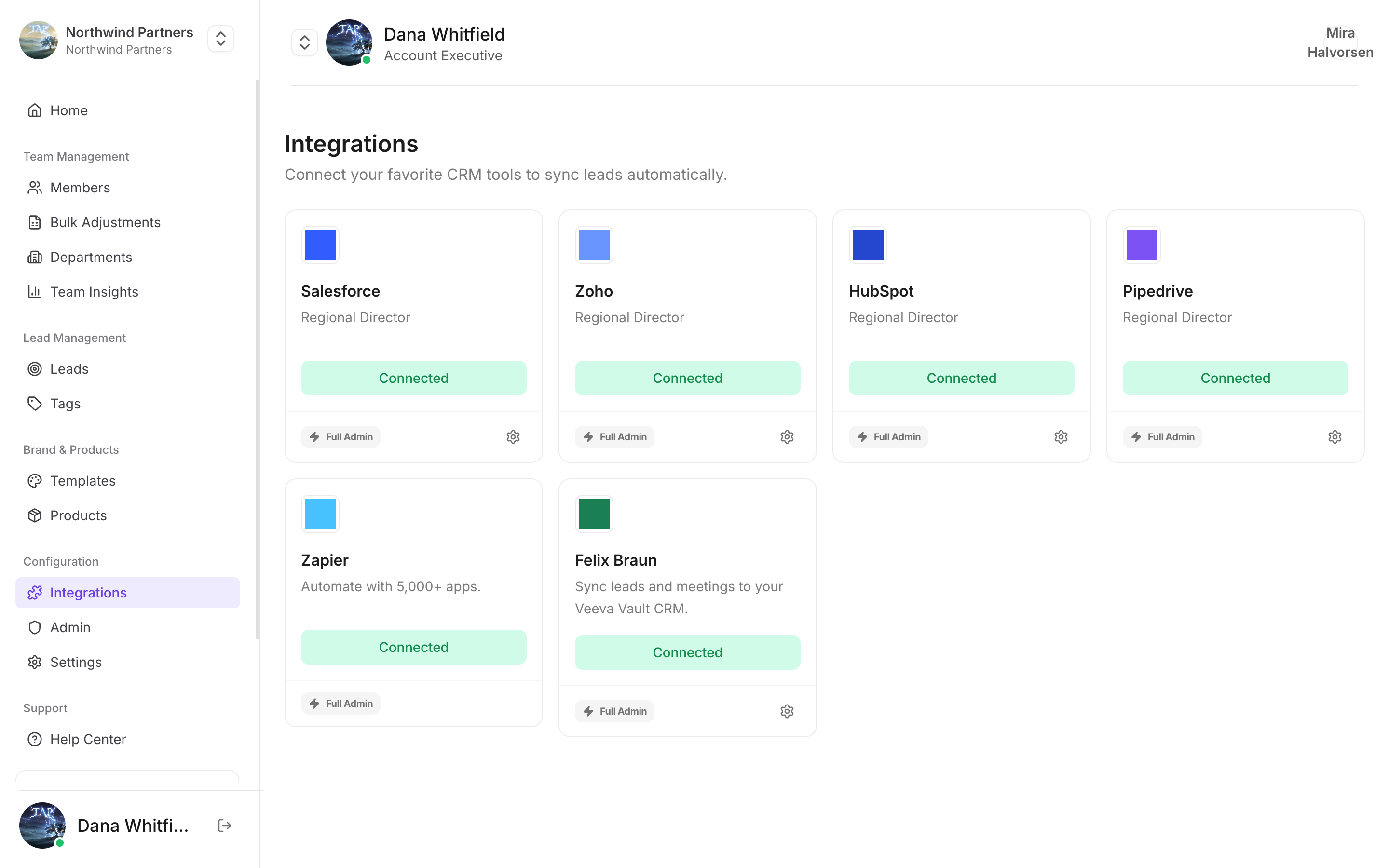
Not on the list? [Zapier](/en/integrations/zapier) reaches several thousand other tools. Separately, [Google Calendar](/en/integrations/google-calendar) connects meetings to your schedule.
## Which connection gets used
This is the part that surprises people. A member can be covered by up to three CRM connections at once, and Tap picks exactly one, in this order:
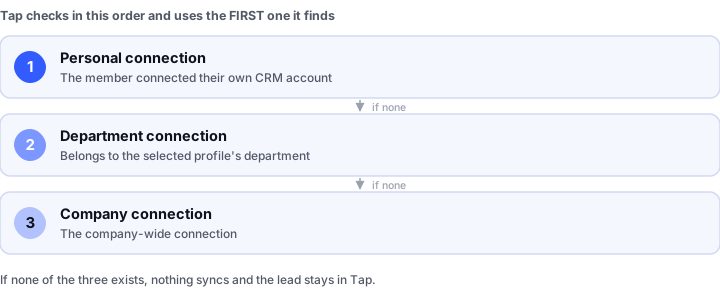
 If the member has connected their own CRM account, that is used — always, regardless of what the company has configured.
Otherwise, the connection belonging to the department of the member's **currently selected profile**.
Otherwise, the company-wide connection.
If none of the three exists, nothing syncs and the lead stays in Tap.
A member with a personal connection **bypasses the company connection entirely**. If one rep's leads are landing in a different CRM account than everyone else's, this is almost always why. Departments also outrank the company connection — not the other way round.
The department connection follows the member's **selected profile**, not the member. A member who switches to a profile in another department starts syncing through that department's connection.
## Lead owner assignment
Separately from *which account* syncs, Tap decides *who owns* the record.
Tap looks up a CRM user whose email matches the Tap member who captured the lead, and assigns them as owner. Lookups are cached for about 10 minutes, so a newly added CRM user may take a few minutes to become assignable.
Owner lookup is **non-blocking**. If no matching CRM user is found, the record still syncs — it just lands with your CRM's default owner instead of failing.
Reps' Tap email addresses should match their CRM login emails. A rep who signs into Tap with a personal address and into Salesforce with a work address will have every lead assigned to the default owner.
## Connecting
In Tap Teams, go to **Integrations** and choose your provider.
You're redirected to your CRM to sign in and approve access. Sign in with an account that has permission to create contacts and tasks — a read-only account will connect successfully and then fail on the first sync.
Match your lead capture fields to CRM fields. See [Field mapping](/en/integrations/field-mapping).
Capture a test lead and confirm it arrives. Don't wait for an event to find out.
## Department access
Departments must be granted CRM access explicitly. Unlike profile and link permissions — which allow by default — **CRM access denies by default**. A department with no grants can't sync anywhere.
See [Department permissions](/en/teams/department-permissions).
Decide where each captured field lands.
This documentation is built and hosted on [Mintlify](https://mintlify.com), a developer documentation platform.
If the member has connected their own CRM account, that is used — always, regardless of what the company has configured.
Otherwise, the connection belonging to the department of the member's **currently selected profile**.
Otherwise, the company-wide connection.
If none of the three exists, nothing syncs and the lead stays in Tap.
A member with a personal connection **bypasses the company connection entirely**. If one rep's leads are landing in a different CRM account than everyone else's, this is almost always why. Departments also outrank the company connection — not the other way round.
The department connection follows the member's **selected profile**, not the member. A member who switches to a profile in another department starts syncing through that department's connection.
## Lead owner assignment
Separately from *which account* syncs, Tap decides *who owns* the record.
Tap looks up a CRM user whose email matches the Tap member who captured the lead, and assigns them as owner. Lookups are cached for about 10 minutes, so a newly added CRM user may take a few minutes to become assignable.
Owner lookup is **non-blocking**. If no matching CRM user is found, the record still syncs — it just lands with your CRM's default owner instead of failing.
Reps' Tap email addresses should match their CRM login emails. A rep who signs into Tap with a personal address and into Salesforce with a work address will have every lead assigned to the default owner.
## Connecting
In Tap Teams, go to **Integrations** and choose your provider.
You're redirected to your CRM to sign in and approve access. Sign in with an account that has permission to create contacts and tasks — a read-only account will connect successfully and then fail on the first sync.
Match your lead capture fields to CRM fields. See [Field mapping](/en/integrations/field-mapping).
Capture a test lead and confirm it arrives. Don't wait for an event to find out.
## Department access
Departments must be granted CRM access explicitly. Unlike profile and link permissions — which allow by default — **CRM access denies by default**. A department with no grants can't sync anywhere.
See [Department permissions](/en/teams/department-permissions).
Decide where each captured field lands.
This documentation is built and hosted on [Mintlify](https://mintlify.com), a developer documentation platform.