> ## Documentation Index
> Fetch the complete documentation index at: https://docs.gettap.co/llms.txt
> Use this file to discover all available pages before exploring further.
# Zapier
> Send Tap leads to anything Zapier connects to.
Zapier is the escape hatch when your tool isn't one of the five directly supported CRMs. If Zapier connects to it, Tap can reach it.
## When to use Zapier instead of a direct integration
Your CRM isn't supported. You want leads in Slack, a spreadsheet, or an email tool as well as your CRM. You need branching logic or filters between capture and destination.
Your CRM is one of the five. It's faster, needs no third-party subscription, handles owner assignment natively, and syncs meeting summaries as tasks — none of which you get for free through Zapier.
## Setting up
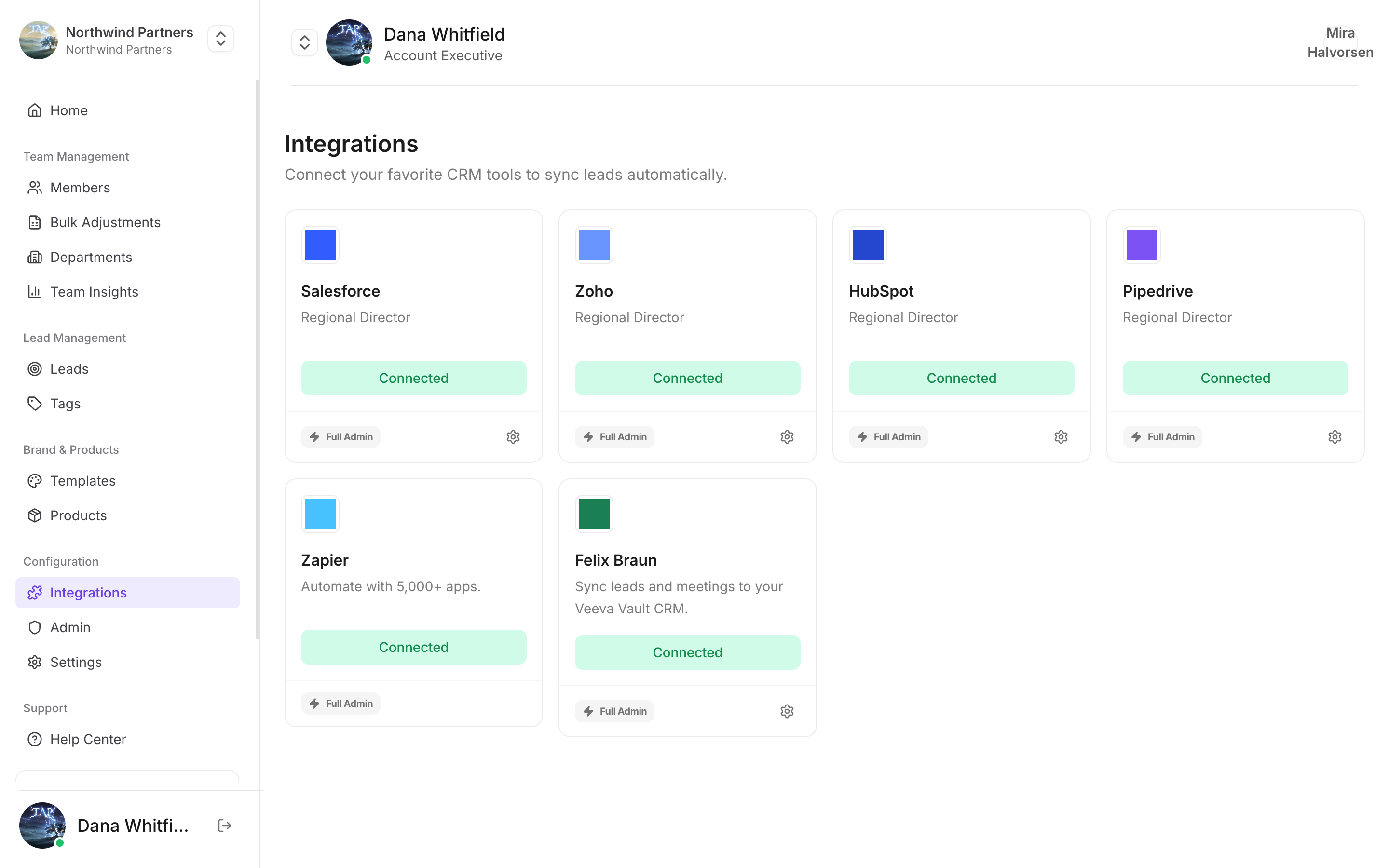
In Tap Teams, go to **Integrations → Zapier**.
In Zapier, create a new Zap and choose Tap as the trigger app. The trigger fires when a new lead is captured.
Paste the connection details from step one when Zapier asks.
Pick the destination app and map Tap's captured fields onto its fields.
Zapier's test step pulls a real recent lead. Confirm every field lands where you expect before enabling the Zap.
## What the trigger sends
Each captured lead carries the answers to your capture form, keyed by each field's `name` — `full-name`, `email`, `phone-mobile`, and any custom fields you added. Alongside those you get the capturing member, the profile used, and the capture timestamp.
If a field you expect is missing from Zapier's field list, capture one more test lead **with that field filled in**, then re-run Zapier's test. Zapier builds its field list from a real sample, so a field left blank in the sample won't appear as a mapping option.
## Common recipes
Trigger on a new lead, action to Slack "Send channel message". Good for a live feed during an event — the team sees momentum, and managers spot a hot lead while the person is still in the room.
A running log for finance or ops who don't have CRM access, and a cheap backup of everything captured.
Trigger on a new lead, action to your email tool. Add a Zapier filter step so only leads who gave an email address and consent continue — see [GDPR mode](/en/account/gdpr-mode).
Zapier sends captured data to a third party you control. If you operate under GDPR or similar rules, your Zapier destinations are part of your data processing footprint and belong in your records.
This documentation is built and hosted on [Mintlify](https://mintlify.com), a developer documentation platform.