> ## Documentation Index
> Fetch the complete documentation index at: https://docs.gettap.co/llms.txt
> Use this file to discover all available pages before exploring further.
# Lead capture forms
> Design the form visitors fill in, and keep it wired correctly to your CRM.
The lead capture form is what a visitor sees after tapping or scanning a member's profile. It's the only part of Tap a stranger interacts with, so it has two competing jobs: collect what you need to qualify, and stay short enough that someone actually finishes it at a busy booth.
## Labels and names
Every field has two identifiers, and confusing them is the most common configuration mistake in Tap.
The human-readable text the visitor reads — "What's your work email?". Cosmetic. Change it whenever you like.
The stable machine key the answer is stored under, and the key your CRM mapping points at. Structural.
Renaming a **label** is always safe. Changing a **name** silently breaks every CRM mapping pointing at the old key — the field keeps collecting data and stops arriving in your CRM. If you must change a name, re-check your [field mapping](/en/integrations/field-mapping) immediately afterwards.
When you add a custom field, Tap generates its `name` by slugifying the label. Two fields labelled "Notes" become `notes` and `notes-1`. Because the key is derived from the label at creation time, later editing the label does **not** change the key — which is exactly what keeps your mapping stable.
## The default form
A brand-new account with no saved form collects four fields, in this order:
`full-name` — text
`email` — email
`phone-mobile` — tel
`note` — textarea
If you save a form with no fields at all, Tap restores these four rather than presenting visitors with an empty form. Clearing the form is not a way to disable capture.
## Built-in fields
These fields have reserved keys with known meaning, which is what lets Tap map them to your CRM's standard properties automatically. Prefer them over custom fields wherever one fits.
### Contact and identity
| Label | Name | Type |
| - | - | - |
| Full Name | `full-name` | text |
| Email | `email` | email |
| Job Title | `job-title` | text |
| LinkedIn | `linkedin` | url |
### Company
| Label | Name | Type |
| - | - | - |
| Company Name | `company-name` | text |
| Company Website | `company-website` | url |
### Phone
| Label | Name | Type |
| - | - | - |
| Phone Number | `phone-number` | tel |
| Mobile | `phone-mobile` | tel |
| Work | `phone-work` | tel |
| Office | `phone-office` | tel |
| Fax | `phone-fax` | tel |
### Location
| Label | Name | Type |
| - | - | - |
| Lead Location | `lead-location` | text |
| Lead Location — Country | `lead-location-country` | text |
| Lead Location — City | `lead-location-city` | text |
| Lead Location — State | `lead-location-state` | text |
| Lead Location — Street Address 1 | `lead-location-street-1` | text |
| Lead Location — Street Address 2 | `lead-location-street-2` | text |
| Lead Location — Postal Code | `lead-location-postal-code` | text |
### Notes
| Label | Name | Type |
| - | - | - |
| Note | `note` | textarea |
| Message | `message` | textarea |
A handful of older keys — `mobile-number`, `primary-email`, `secondary-email`, `primary-phone`, `secondary-phone`, `address`, `image` — remain valid for accounts created before the current field set. They still work and still map. You don't need to migrate them, but use the modern keys above for anything new.
## Custom fields
Anything the built-in set doesn't cover — "Which product are you interested in?", "Booth number", "Event name" — becomes a custom field with a slugified key.
Custom fields work exactly like built-in ones except for CRM mapping: Tap can't guess where they belong, so you must map them by hand. See [Field mapping](/en/integrations/field-mapping#custom-fields).
## Where the form comes from
A profile can get its capture fields from three places. They resolve in this order, first match winning:
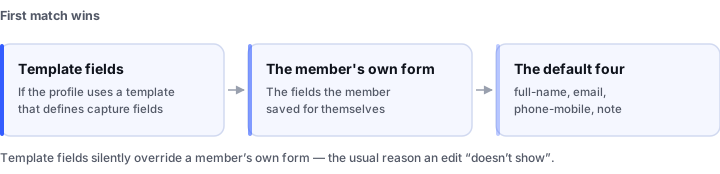
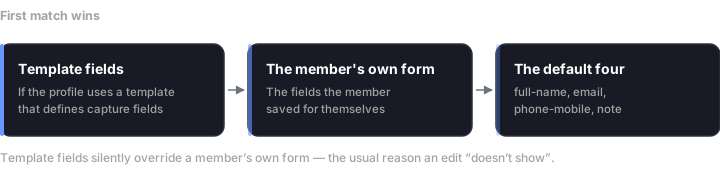 If the profile uses a template that defines lead capture fields, those fields are used. This is how an admin forces every rep to collect the same data.
Otherwise, the fields the member saved for themselves.
If the member has never saved a form, the default set above is used — and created for them on first load.
If a rep insists they changed their form and the change isn't showing, check whether their profile is on a template that defines capture fields. Template fields silently override personal ones.
## Prefill from a connected profile
When a visitor is themselves a Tap user, the form can prefill from their profile — name, email, company already filled in before they type anything.
Anything the visitor types wins over the prefilled value. Prefill is a convenience, never an override.
## Best practices
Completion rate falls off sharply past six fields. Anything you could enrich later from an email address — company size, industry, location — doesn't belong on the form.
Free-text fields are the most likely to be abandoned. Placing the note after the contact details means a visitor who gives up partway has still given you a usable lead.
A custom field called "Work Email" needs manual mapping in every CRM. The built-in `email` field maps itself.
Don't ask visitors to type the event name. Apply a [tag](/en/teams/tags) to the leads afterwards — it's more accurate and costs the visitor nothing.
How capture actually works in the field.
This documentation is built and hosted on [Mintlify](https://mintlify.com), a developer documentation platform.
If the profile uses a template that defines lead capture fields, those fields are used. This is how an admin forces every rep to collect the same data.
Otherwise, the fields the member saved for themselves.
If the member has never saved a form, the default set above is used — and created for them on first load.
If a rep insists they changed their form and the change isn't showing, check whether their profile is on a template that defines capture fields. Template fields silently override personal ones.
## Prefill from a connected profile
When a visitor is themselves a Tap user, the form can prefill from their profile — name, email, company already filled in before they type anything.
Anything the visitor types wins over the prefilled value. Prefill is a convenience, never an override.
## Best practices
Completion rate falls off sharply past six fields. Anything you could enrich later from an email address — company size, industry, location — doesn't belong on the form.
Free-text fields are the most likely to be abandoned. Placing the note after the contact details means a visitor who gives up partway has still given you a usable lead.
A custom field called "Work Email" needs manual mapping in every CRM. The built-in `email` field maps itself.
Don't ask visitors to type the event name. Apply a [tag](/en/teams/tags) to the leads afterwards — it's more accurate and costs the visitor nothing.
How capture actually works in the field.
This documentation is built and hosted on [Mintlify](https://mintlify.com), a developer documentation platform.