> ## Documentation Index
> Fetch the complete documentation index at: https://docs.gettap.co/llms.txt
> Use this file to discover all available pages before exploring further.
# Managing leads
> Add, find, edit, tag, email, and export the leads your team has captured.
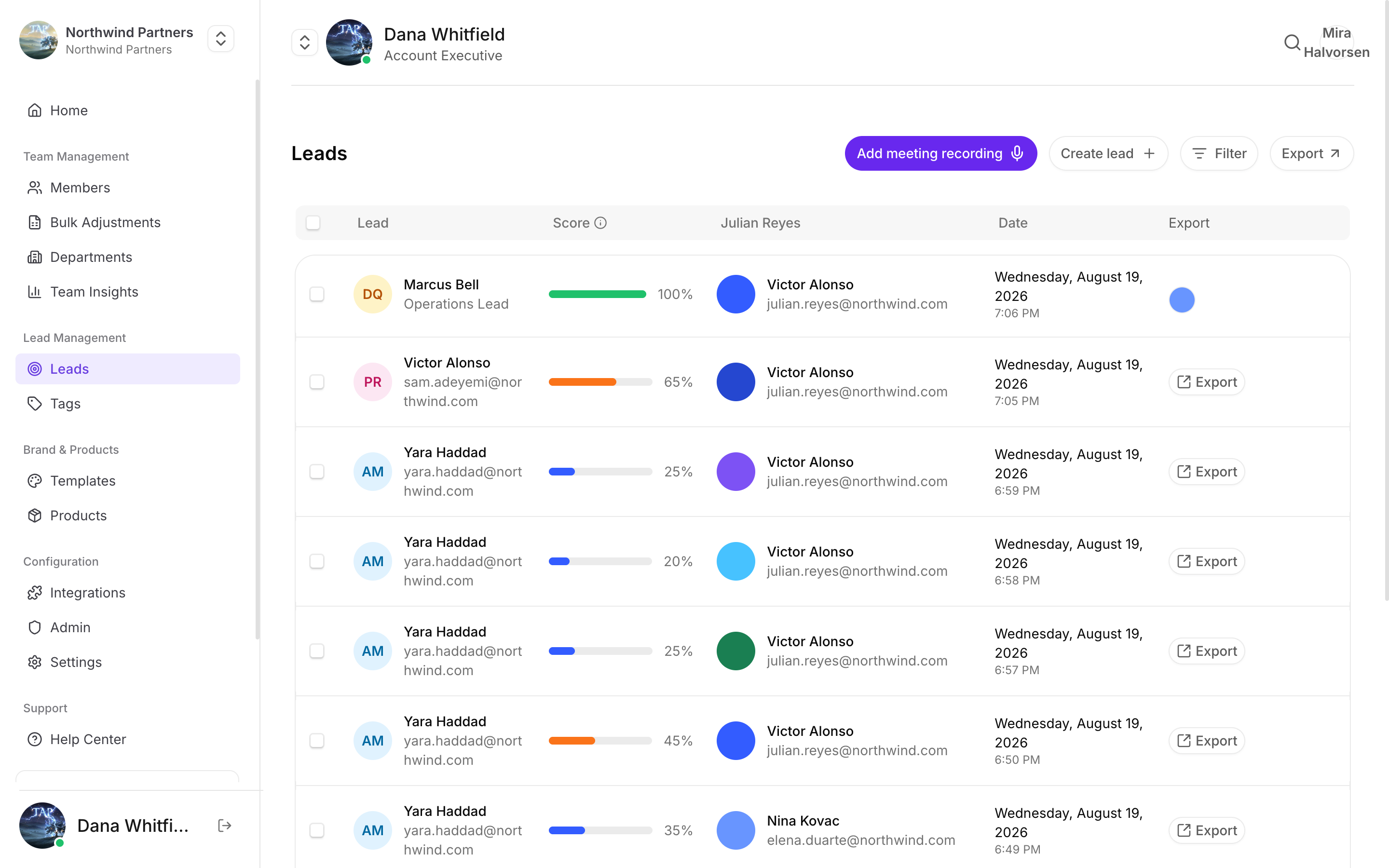
Every captured contact appears under **Leads** in Tap Teams, whoever captured them and whichever CRM they synced to.
## The leads list
Search by name, filter, and sort. Each lead shows its [quality score](/en/leads/lead-scoring), who on your team met them, and exactly when. A lead with no name yet shows its email address instead.
Open a lead to see everything captured — form answers, notes, tags, attached meetings, and follow-up history. If the lead has been [enriched](/en/leads/enrichment), what enrichment found is on the same page.
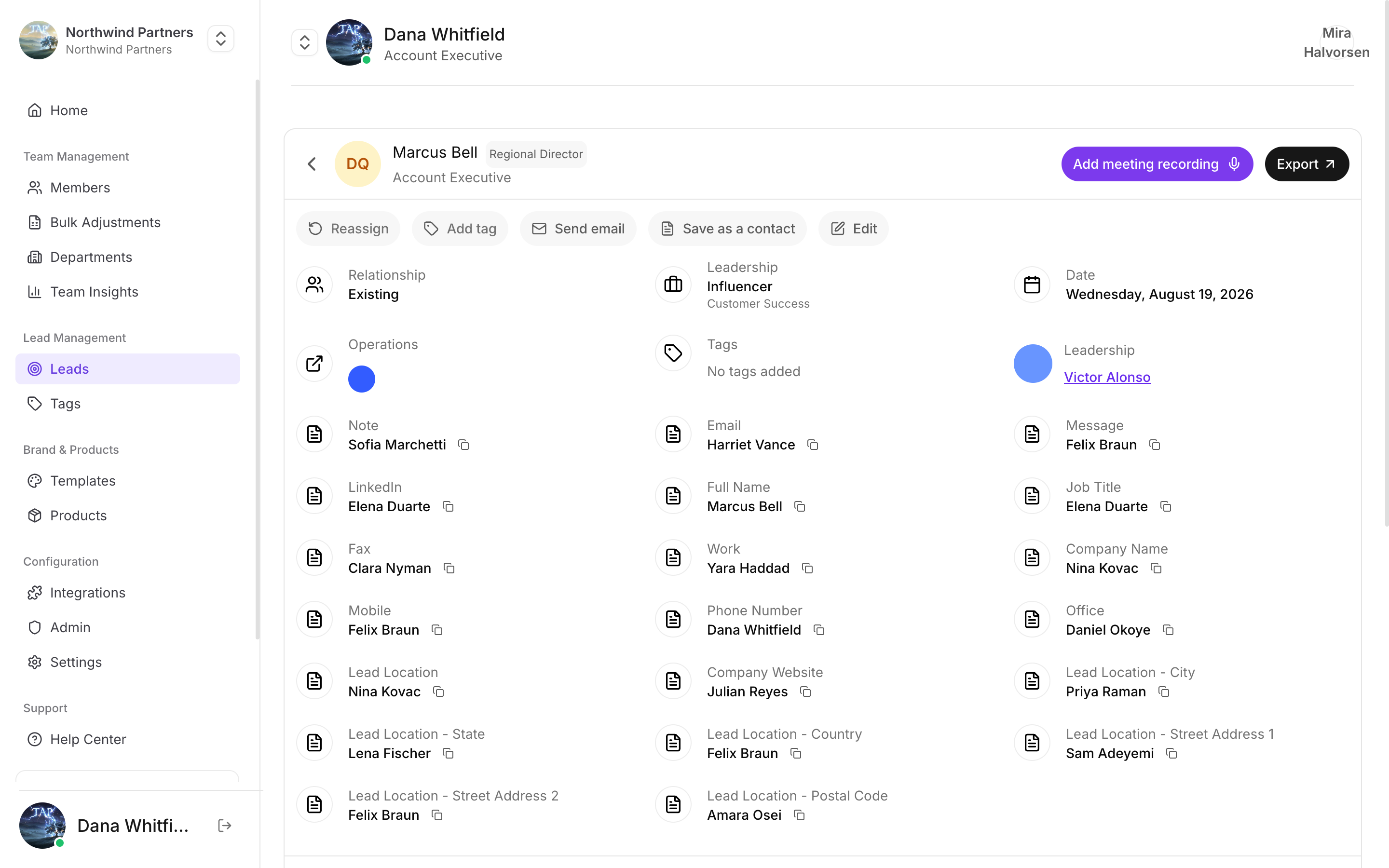
From here you can **Reassign** the lead to another member, **Add tag**, email them, **Save as a contact**, **Edit** the record, or **Add meeting recording**.
## Adding a lead from the dashboard
Most leads arrive from the field. When you have one that didn't, **Create a lead** offers four routes:
| Route | Use it when | Cost |
| - | - | - |
| **Create from LinkedIn** | You have their LinkedIn profile URL. The most accurate route. | Credits, only if their work email is found |
| **Find by name** | You have a name and a company, nothing else. | Credits, only if they're found |
| **Create manually** | You'll type the details yourself. | Free |
| **Import a file** | You have a list in a spreadsheet or a CRM export. | Free |
The two lookup routes use [enrichment credits](/en/leads/enrichment#credits), and the dialog shows the cost before you confirm. If the person already exists as one of your leads, you're sent to that lead and no credit is used.
A lead created from a LinkedIn URL exists only because of the lookup. If nothing at all is found, no lead is kept.
## Importing a file
**Import a file** brings in a list from a spreadsheet or a CRM export. CSV and Excel files both work, and the dialog shows the row and size limits.
Choose a file or drop it in. **Download the template** if you're starting from scratch.
Tap guesses which column is which. Correct anything it got wrong, and set columns you don't want to **Do not import**. Columns that don't match a Tap field can be kept on each lead under your own column name.
Each row needs a LinkedIn URL, or a name with a company, email, or phone.
You see how many leads are ready, how many rows will be skipped and why, and how many are duplicates — repeated in the file, or already one of your leads. **Skip duplicates** leaves those out.
You can close the dialog while it runs. The import keeps going.
When it finishes, you're offered to [enrich](/en/leads/enrichment) the new leads — only the ones missing details, all of them, or a selection. Importing itself is free.
## Editing a lead
Open the lead and choose **Edit**. Useful for correcting a mistyped email or adding context after the fact.
Editing a lead in Tap does not push the correction to your CRM retroactively. If the record already synced with a wrong value, fix it in the CRM too.
## Working with a selection
Select leads in the list and the actions apply to all of them together:
* **Add tag** and **Remove tag**. Remove tag only appears when something selected has a tag.
* **Reassign** to another member.
* **Send email** to every selected lead. Each address appears once. Leads without an email address are skipped, and you're told how many were sent. If none of them has an address, the button is disabled.
* **Enrich** — see [Lead enrichment](/en/leads/enrichment).
* **Delete leads**, from the **···** menu.
Selection works page by page.
## Tagging
Add [tags](/en/teams/tags) individually, or select several leads and tag them together. Bulk tagging is how you label an event's worth of leads in one action: filter to the date range, select the page, apply the tag.
## Notes on a lead
Every lead carries a **Notes** section — what a rep typed, what a visitor wrote on the capture form, and any voice notes recorded on the phone. Each note tracks its own delivery to your CRM and can carry its own tasks.
See [Notes](/en/leads/notes).
## Meetings on a lead
A lead can carry recorded meetings. From the lead you can create a meeting, open one to read its transcript and summary, and see extracted action items.
See [Meetings](/en/leads/meetings).
## Exporting
Export the current list to a spreadsheet. The export reflects your active filters, so filter first and you get exactly the slice you want.
Exports are useful for:
* Getting leads into a tool Tap doesn't integrate with directly
* Recovering leads captured before a CRM was connected
* Sharing a specific event's results with someone who has no Tap access
* Keeping your own record before removing a member
Unmapped capture fields are still included in exports. A field that never reaches your CRM because nothing maps to it is not lost — it's on the lead and in the export.
## Deleting leads
Delete one lead from its page, or several at once by selecting them and choosing **Delete leads** from the **···** menu.
You can delete the leads you captured. A sub-team admin can also delete the leads of the departments they run, and a full-team admin can delete any lead.
Deleting removes the lead from Tap. It does **not** delete the corresponding record from your CRM — that already synced and lives there independently.
Deletion is permanent. Export first if there's any chance you'll want the data back.
For requests to erase someone's data entirely, see [GDPR mode](/en/account/gdpr-mode).
## Who can see which leads
Members see the leads they captured. Admins see the whole team's. Department admins see their department's, where department admin management is enabled.
Fill in a lead's work email, phone, title, and company.
This documentation is built and hosted on [Mintlify](https://mintlify.com), a developer documentation platform.