> ## Documentation Index
> Fetch the complete documentation index at: https://docs.gettap.co/llms.txt
> Use this file to discover all available pages before exploring further.
# Meetings
> Record a conversation and get a summary, talk ratio, buying signals, objections, and action items.
A meeting is a recorded conversation attached to a lead. Tap transcribes it, then analyses it — producing far more than a transcript.
The point is to stop losing the reason a lead mattered. Everyone remembers the name on the badge; almost nobody remembers what was actually said three booths later.
## Creating a meeting
Record a meeting against the lead, or upload a recording you already have. For something shorter than a full conversation, record a voice note instead — see [Notes](/en/leads/notes).
Select the language the conversation is in before processing. Getting this right materially improves transcription accuracy.
The type determines which talk-ratio target the analysis measures you against — see below. It can be changed after the fact.
Transcription and analysis run in the background. You don't need to wait on the screen.
Recording someone requires their knowledge and, in many places, their consent. Laws differ by country and by state. Tell the other person you're recording before you start.
## Meeting types
The type frames the whole analysis, because a good discovery call and a good negotiation look nothing alike:
| Type | |
| - | - |
| Discovery | Cold prospecting |
| Demo walkthrough | Negotiation & closing |
| Onboarding & training | Troubleshooting & support |
| Follow-up | General |
## What happens to a recording
 ## What the analysis gives you
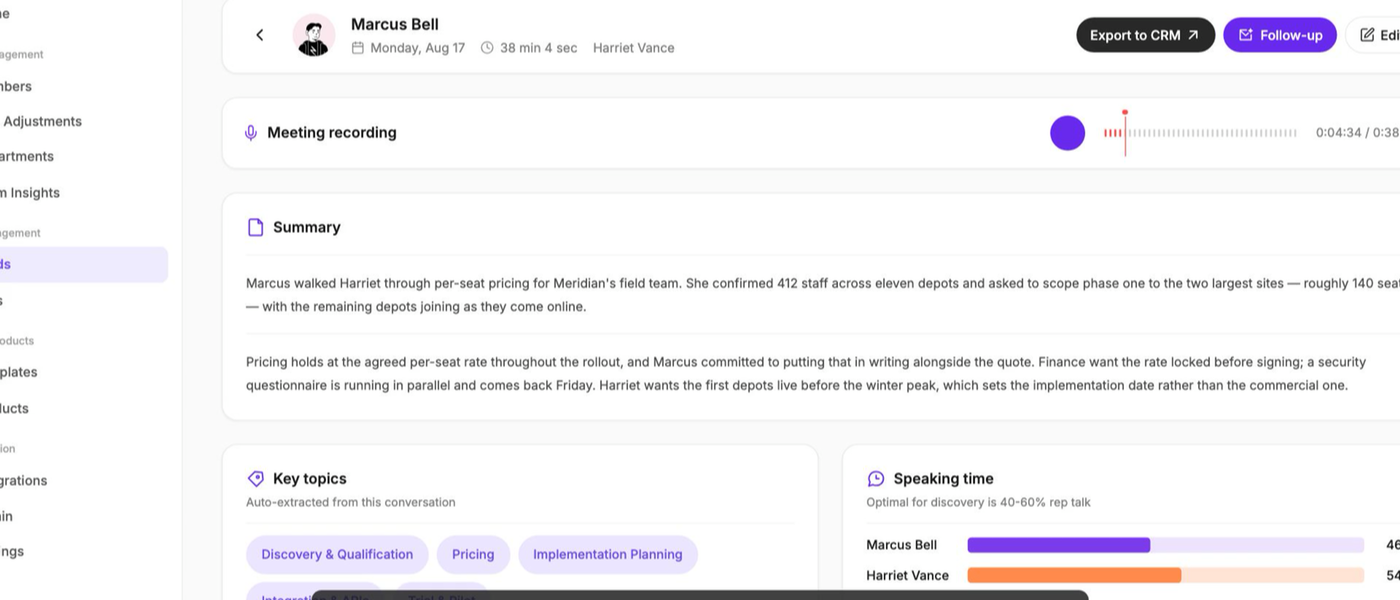
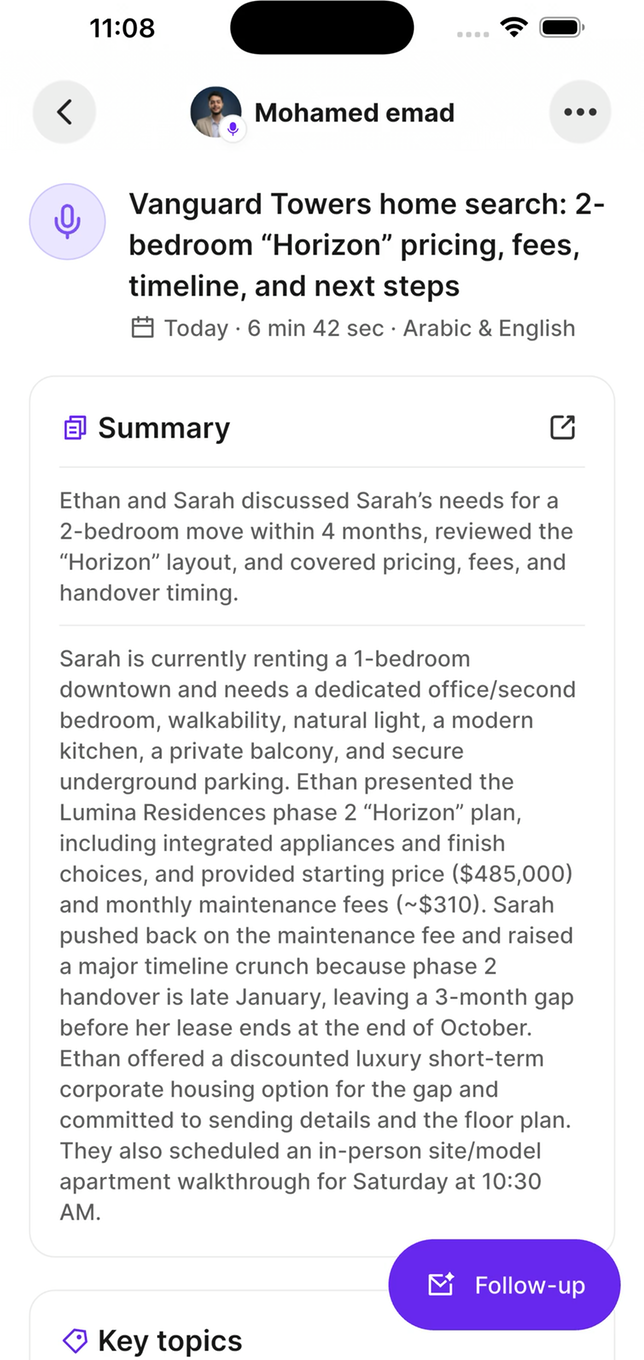
What the conversation was about, readable at a glance weeks later.
Auto-extracted subjects. Tap a topic to jump to that moment in the conversation.
Moments the lead moved toward a decision. The most commercially useful output in the product.
Pushback raised during the conversation, which you can mark as handled.
How much you talked versus them, measured against a target.
How the tone moved through the conversation.
Action items are extracted too, and become [follow-ups](/en/leads/follow-ups).
The analysis answers the questions Tap thought to ask. For your own, open [Ask AI](/en/leads/ask-ai) on the meeting and ask — answers cite the moment in the recording they came from.
## What the analysis gives you
What the conversation was about, readable at a glance weeks later.
Auto-extracted subjects. Tap a topic to jump to that moment in the conversation.
Moments the lead moved toward a decision. The most commercially useful output in the product.
Pushback raised during the conversation, which you can mark as handled.
How much you talked versus them, measured against a target.
How the tone moved through the conversation.
Action items are extracted too, and become [follow-ups](/en/leads/follow-ups).
The analysis answers the questions Tap thought to ask. For your own, open [Ask AI](/en/leads/ask-ai) on the meeting and ask — answers cite the moment in the recording they came from.

 ## Talk ratio
Analysis measures what share of the conversation you spoke, and compares it to a target for that meeting type. Discovery calls have a low target — you should be listening — while a demo walkthrough legitimately has you talking more.
You'll see one of:
| Result | Meaning |
| - | - |
| On target | Your share sits inside the range for this meeting type |
| Above target / Well above target | You talked more than the type calls for |
| Below target | You talked less than expected |
| Not enough data | The recording was too short or too unclear to judge |
"Well above target" on a discovery call is the single most useful coaching signal Tap produces. A rep who talks two-thirds of a discovery call isn't discovering anything — and it's a habit that's invisible without measurement and straightforward to fix once it's on a screen.
Talk ratio measures airtime, not quality. Being on target isn't proof the conversation went well, and being below target during a technical explanation may be exactly right. Treat it as a prompt to go listen to the recording, not a grade.
## Participants
Meetings track who took part, and transcription separates speakers so the transcript shows who said what. With [Google Calendar](/en/integrations/google-calendar) connected, attendees can be pulled from the invite rather than entered by hand.
## Meetings and your CRM
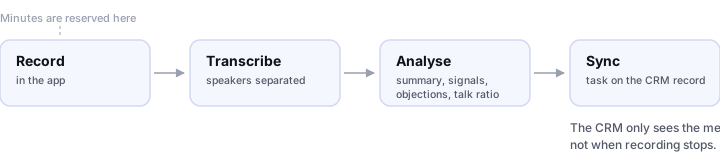
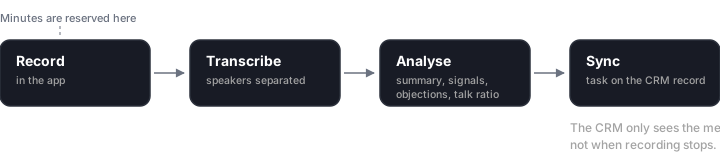
When a meeting finishes processing, its summary and action items sync to that lead's CRM record as a task.
The meeting syncs when **analysis completes**, not when recording stops. A summary that hasn't appeared yet is usually still processing. And if the lead itself never synced, there's nothing to attach to — fix the contact sync first.
## Minutes
Meetings consume transcription minutes from your plan. If the pool is exhausted, the meeting is rejected before processing rather than failing partway. See [Transcription](/en/leads/transcription).
## Getting good recordings
Trade show floors are brutally noisy. A phone on a table between two people transcribes far better than one in a pocket.
"Thanks for coming by, Sarah" gives speaker separation something to work with and makes the transcript far easier to read.
The largest single factor in transcription accuracy after noise. A conversation that switches languages mid-sentence is the hardest case there is.
Starting halfway through loses the context that makes the summary useful, and gives talk ratio too little to work with.
This documentation is built and hosted on [Mintlify](https://mintlify.com), a developer documentation platform.
## Talk ratio
Analysis measures what share of the conversation you spoke, and compares it to a target for that meeting type. Discovery calls have a low target — you should be listening — while a demo walkthrough legitimately has you talking more.
You'll see one of:
| Result | Meaning |
| - | - |
| On target | Your share sits inside the range for this meeting type |
| Above target / Well above target | You talked more than the type calls for |
| Below target | You talked less than expected |
| Not enough data | The recording was too short or too unclear to judge |
"Well above target" on a discovery call is the single most useful coaching signal Tap produces. A rep who talks two-thirds of a discovery call isn't discovering anything — and it's a habit that's invisible without measurement and straightforward to fix once it's on a screen.
Talk ratio measures airtime, not quality. Being on target isn't proof the conversation went well, and being below target during a technical explanation may be exactly right. Treat it as a prompt to go listen to the recording, not a grade.
## Participants
Meetings track who took part, and transcription separates speakers so the transcript shows who said what. With [Google Calendar](/en/integrations/google-calendar) connected, attendees can be pulled from the invite rather than entered by hand.
## Meetings and your CRM
When a meeting finishes processing, its summary and action items sync to that lead's CRM record as a task.
The meeting syncs when **analysis completes**, not when recording stops. A summary that hasn't appeared yet is usually still processing. And if the lead itself never synced, there's nothing to attach to — fix the contact sync first.
## Minutes
Meetings consume transcription minutes from your plan. If the pool is exhausted, the meeting is rejected before processing rather than failing partway. See [Transcription](/en/leads/transcription).
## Getting good recordings
Trade show floors are brutally noisy. A phone on a table between two people transcribes far better than one in a pocket.
"Thanks for coming by, Sarah" gives speaker separation something to work with and makes the transcript far easier to read.
The largest single factor in transcription accuracy after noise. A conversation that switches languages mid-sentence is the hardest case there is.
Starting halfway through loses the context that makes the summary useful, and gives talk ratio too little to work with.
This documentation is built and hosted on [Mintlify](https://mintlify.com), a developer documentation platform.