> ## Documentation Index
> Fetch the complete documentation index at: https://docs.gettap.co/llms.txt
> Use this file to discover all available pages before exploring further.
# Connections
> The people you've met, and what to do with them in the app.
A connection is someone you captured. In Tap Teams the same records appear as **Leads** — connection is what the app calls them.
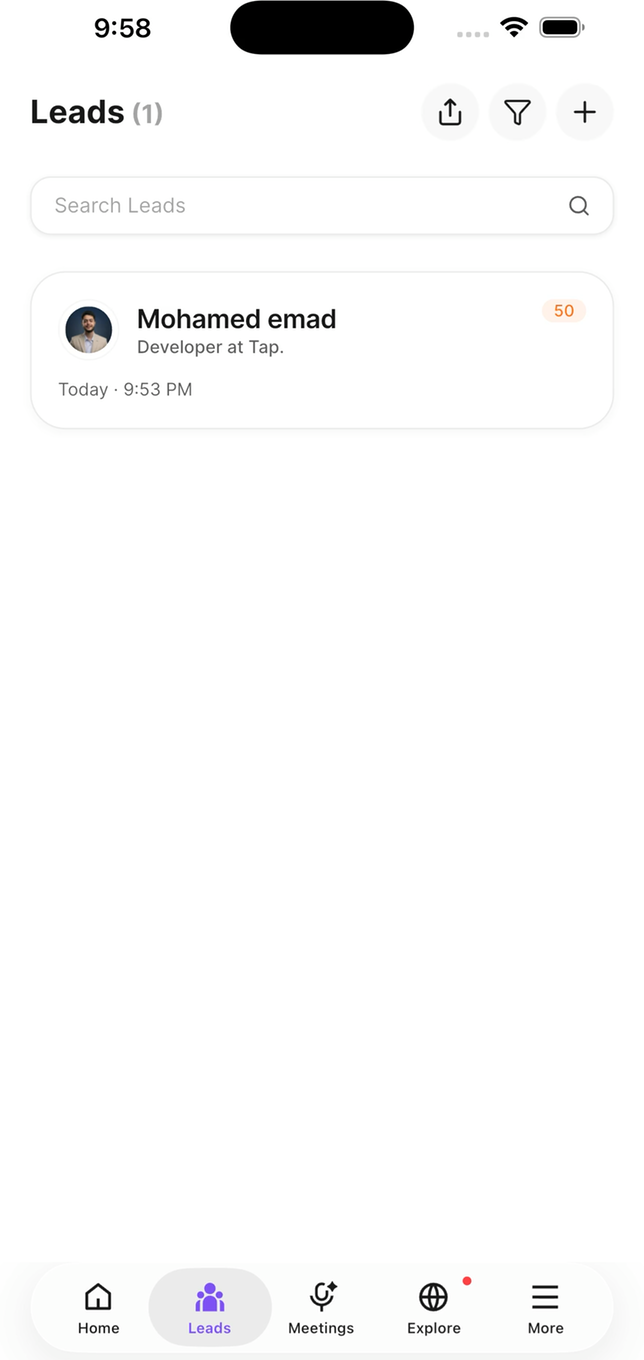 ## How connections are created
* Someone fills in your capture form after a tap or scan.
* You [scan](/en/mobile/scanning) a business card, QR code, or event badge.
* You add someone manually.
## Qualifying a lead
Right after a lead is saved, the app offers two quick questions — the **relationship** you have with them, and their **buying role**. You can skip them and come back later.
Answer these at the event. Thirty seconds while the conversation is fresh produces better data than an hour of guessing a fortnight later.
Every lead also carries a [quality score](/en/leads/lead-scoring) marking it Hot, Warm, or Cold, calculated from what was captured.
## Organising them
File connections into groups — by event, by region, by campaign.
Label them for filtering later. See [Tags](/en/teams/tags).
Notes attach to any connection, and you can browse your full connection history or discover connections across your network.
Add a note while you still remember the conversation. "Met at the Berlin booth, evaluating for Q3, currently on a competitor" is worth more three weeks later than any amount of captured form data.
## Recording a meeting
Attach a recorded conversation to a connection and Tap transcribes it, then extracts a summary, key topics, buying signals, objections, your talk ratio, and action items.
See [Meetings](/en/leads/meetings).
## Following up
Action items become [follow-ups](/en/leads/follow-ups). Mark them done as you complete them — that's what feeds your team's [action completion](/en/insights/action-completion).
## Saving to your phone
A connection can be saved into your phone's own contacts, so they're reachable from your dialler without opening Tap.
This copies the contact. It doesn't link the two — later edits in Tap won't update your phone contact, and vice versa.
## What your admins see
Admins see the whole team's connections in Tap Teams, and connections sync to your company CRM where an integration is set up.
Connections belong to the company, not to you personally. If you leave, the leads you captured stay with the team.
This documentation is built and hosted on [Mintlify](https://mintlify.com), a developer documentation platform.
## How connections are created
* Someone fills in your capture form after a tap or scan.
* You [scan](/en/mobile/scanning) a business card, QR code, or event badge.
* You add someone manually.
## Qualifying a lead
Right after a lead is saved, the app offers two quick questions — the **relationship** you have with them, and their **buying role**. You can skip them and come back later.
Answer these at the event. Thirty seconds while the conversation is fresh produces better data than an hour of guessing a fortnight later.
Every lead also carries a [quality score](/en/leads/lead-scoring) marking it Hot, Warm, or Cold, calculated from what was captured.
## Organising them
File connections into groups — by event, by region, by campaign.
Label them for filtering later. See [Tags](/en/teams/tags).
Notes attach to any connection, and you can browse your full connection history or discover connections across your network.
Add a note while you still remember the conversation. "Met at the Berlin booth, evaluating for Q3, currently on a competitor" is worth more three weeks later than any amount of captured form data.
## Recording a meeting
Attach a recorded conversation to a connection and Tap transcribes it, then extracts a summary, key topics, buying signals, objections, your talk ratio, and action items.
See [Meetings](/en/leads/meetings).
## Following up
Action items become [follow-ups](/en/leads/follow-ups). Mark them done as you complete them — that's what feeds your team's [action completion](/en/insights/action-completion).
## Saving to your phone
A connection can be saved into your phone's own contacts, so they're reachable from your dialler without opening Tap.
This copies the contact. It doesn't link the two — later edits in Tap won't update your phone contact, and vice versa.
## What your admins see
Admins see the whole team's connections in Tap Teams, and connections sync to your company CRM where an integration is set up.
Connections belong to the company, not to you personally. If you leave, the leads you captured stay with the team.
This documentation is built and hosted on [Mintlify](https://mintlify.com), a developer documentation platform.