> ## Documentation Index
> Fetch the complete documentation index at: https://docs.gettap.co/llms.txt
> Use this file to discover all available pages before exploring further.
# Tap products
> Activate a physical Tap card or tag, link it to a profile, and manage it later.
A Tap product is the physical thing you carry — a card, a tag, a sticker. It holds no data itself; it points at one of your profiles. That's why you can redesign a profile forever without reprinting anything.
## Activating a product
You can activate by NFC or by QR code. Both link the product to a profile you choose.
Choose the product you'd like to activate.
On iPhone the NFC reader is at the **top edge**. On Android it's usually in the **centre of the back** — slide the product around until it connects. Make sure NFC is enabled in your settings.
Once detected, you get a confirmation that the product is activated and linked to your selected profile.
Choose the product you'd like to activate.
Choose activation via QR code and point your camera at the code on the product.
You get a confirmation that the product is activated and linked.
If your phone doesn't support NFC, use the QR method — it produces exactly the same result.
## Managing a product
Point an existing product at a different profile. The physical card doesn't change; what it opens does.
Give it a name you'll recognise — "black card", "desk stand". Essential once you own more than two.
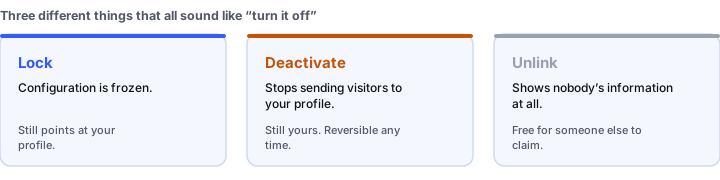
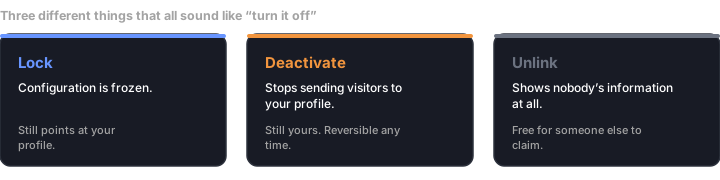
Locking prevents changes to the product's configuration.
Deactivating stops it directing visitors to your profile via NFC or its QR code. Reversible.
Show your own branded card on an iPhone that doesn't have the Tap app, instead of opening the browser. Pro+.
### Deactivate or unlink?
These sound similar and do different things:
 | Action | Effect |
| - | - |
| **Deactivate** | The product stops sending visitors to your profile. Still yours, reactivate any time. |
| **Unlink** | The product shows nobody's information until it's linked again — to you or to someone else. |
**Lost your card? Deactivate it immediately.** An active card is a working link to your profile in a stranger's hands. Unlink instead if you're handing the product to a colleague.
## Collect Leads
Each profile can have lead capture switched on or off. With it on, visitors who open your profile see your [capture form](/en/leads/lead-capture-forms) and you collect their details instead of just handing over yours.
Turn it on before an event and consider turning it off afterwards, if you use the same profile for everyday sharing. Not every context calls for asking a stranger to fill in a form.
Admins can toggle this across many members at once — see [Bulk adjustments](/en/teams/bulk-adjustments).
## Troubleshooting
Check NFC is enabled, then work on position — top edge on iPhone, centre of the back on Android — moving slowly. Thick or metal cases interfere. If it still won't connect, use the QR method.
The product is still linked to another account. Whoever holds it needs to unlink it first.
The product is linked to a different profile than you expect. Switch its profile rather than reactivating from scratch.
Check whether the product has been deactivated. That's the most common cause, and it's a one-tap fix.
Apple has to approve the card, which can take up to two days. Until then the product behaves normally. See [Tailored Exchange](/en/mobile/tailored-exchange).
This documentation is built and hosted on [Mintlify](https://mintlify.com), a developer documentation platform.
| Action | Effect |
| - | - |
| **Deactivate** | The product stops sending visitors to your profile. Still yours, reactivate any time. |
| **Unlink** | The product shows nobody's information until it's linked again — to you or to someone else. |
**Lost your card? Deactivate it immediately.** An active card is a working link to your profile in a stranger's hands. Unlink instead if you're handing the product to a colleague.
## Collect Leads
Each profile can have lead capture switched on or off. With it on, visitors who open your profile see your [capture form](/en/leads/lead-capture-forms) and you collect their details instead of just handing over yours.
Turn it on before an event and consider turning it off afterwards, if you use the same profile for everyday sharing. Not every context calls for asking a stranger to fill in a form.
Admins can toggle this across many members at once — see [Bulk adjustments](/en/teams/bulk-adjustments).
## Troubleshooting
Check NFC is enabled, then work on position — top edge on iPhone, centre of the back on Android — moving slowly. Thick or metal cases interfere. If it still won't connect, use the QR method.
The product is still linked to another account. Whoever holds it needs to unlink it first.
The product is linked to a different profile than you expect. Switch its profile rather than reactivating from scratch.
Check whether the product has been deactivated. That's the most common cause, and it's a one-tap fix.
Apple has to approve the card, which can take up to two days. Until then the product behaves normally. See [Tailored Exchange](/en/mobile/tailored-exchange).
This documentation is built and hosted on [Mintlify](https://mintlify.com), a developer documentation platform.