> ## Documentation Index
> Fetch the complete documentation index at: https://docs.gettap.co/llms.txt
> Use this file to discover all available pages before exploring further.
# Sharing your profile
> NFC, QR, AirDrop, WhatsApp, or a link — and how to share with no signal.
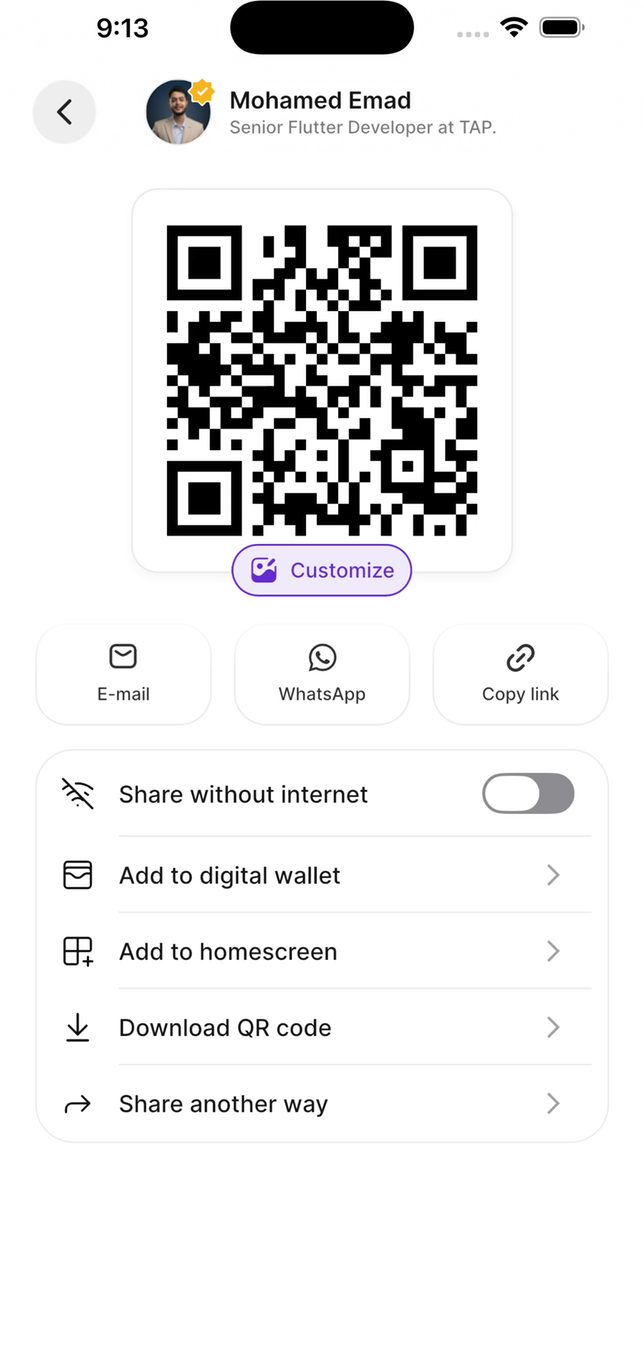 ## Ways to share
The visitor holds their phone near your Tap card or tag. Nothing to aim, no app on their side.
Copy your profile link and paste it anywhere — a chat, an email signature, a video call.
They scan a code from your screen. Works at distance and on every phone.
Send your profile to a nearby Apple device.
Send your profile link in a message, with the text pre-filled.
## Sharing without internet
There's a dedicated **share without internet** mode that shows a QR code working with no connection at all.
This is the single most useful thing to know before a conference. Exhibition halls routinely have saturated mobile networks and unusable guest wifi, and it's precisely when everyone is trying to share contacts at once that connectivity dies. Learn where this screen is *before* you need it.
Captured leads also queue offline and sync when you reconnect — just don't sign out while captures are still pending.
## Customising your QR code
Your QR code doesn't have to look generic. You can change:
* **Colours** — match your brand
* **Logo** — put your mark in the centre
* **Pattern** — the dot style
Test a customised code by scanning it with a different phone before you rely on it. Heavy colour customisation — particularly low contrast between the code and its background — can make a code slow or impossible to scan, and an event is a bad place to discover that.
You can also download the QR code as an image for a slide, a booth banner, or an email signature, and add your profile to your phone's home screen for one-tap access.
## Wallet passes
Add your profile to **Apple Wallet** or **Google Wallet** so it's reachable from the lock screen. See [Wallet passes](/en/mobile/wallet-passes).
## Which to use when
Fastest and most memorable. Someone who's never seen NFC tends to remember the interaction, which is worth something where every booth blurs together.
Works at distance, and several people can scan the same code at once. Also your fallback when NFC doesn't cooperate.
WhatsApp, email, follow-ups, signatures, video calls.
Lead with NFC and keep the QR one tap away. Reaching for a fallback smoothly looks prepared; fumbling looks like the technology failed.
## When NFC doesn't work
NFC depends on the visitor's phone, not yours.
Some Android phones ship with NFC off.
The antenna is at the **top edge** on iPhone and usually the **centre of the back** on Android. Slide it around slowly.
Thick cases, metal cases, and wallet cases with cards in them all interfere.
Don't spend thirty seconds debugging someone else's phone in front of them.
## What happens after you share
The visitor's browser opens your profile — no app install. They see your links and fill in your [capture form](/en/leads/lead-capture-forms) if you have lead capture switched on. The lead appears immediately in the app and in Tap Teams.
On a Pro+ plan you can replace that browser moment on iPhone. With [Tailored Exchange](/en/mobile/tailored-exchange) switched on for a card, tapping it shows your own branded card on their screen instead of opening Safari — still with nothing to install.
## At an event
Capture one test lead before the doors open.
A dim screen under exhibition lighting makes QR codes slow to scan.
A day of NFC, screen-on time, and recording drains a phone fast, and a dead phone captures nothing.
Worth repeating: find it before the network fails, not after.
This documentation is built and hosted on [Mintlify](https://mintlify.com), a developer documentation platform.
## Ways to share
The visitor holds their phone near your Tap card or tag. Nothing to aim, no app on their side.
Copy your profile link and paste it anywhere — a chat, an email signature, a video call.
They scan a code from your screen. Works at distance and on every phone.
Send your profile to a nearby Apple device.
Send your profile link in a message, with the text pre-filled.
## Sharing without internet
There's a dedicated **share without internet** mode that shows a QR code working with no connection at all.
This is the single most useful thing to know before a conference. Exhibition halls routinely have saturated mobile networks and unusable guest wifi, and it's precisely when everyone is trying to share contacts at once that connectivity dies. Learn where this screen is *before* you need it.
Captured leads also queue offline and sync when you reconnect — just don't sign out while captures are still pending.
## Customising your QR code
Your QR code doesn't have to look generic. You can change:
* **Colours** — match your brand
* **Logo** — put your mark in the centre
* **Pattern** — the dot style
Test a customised code by scanning it with a different phone before you rely on it. Heavy colour customisation — particularly low contrast between the code and its background — can make a code slow or impossible to scan, and an event is a bad place to discover that.
You can also download the QR code as an image for a slide, a booth banner, or an email signature, and add your profile to your phone's home screen for one-tap access.
## Wallet passes
Add your profile to **Apple Wallet** or **Google Wallet** so it's reachable from the lock screen. See [Wallet passes](/en/mobile/wallet-passes).
## Which to use when
Fastest and most memorable. Someone who's never seen NFC tends to remember the interaction, which is worth something where every booth blurs together.
Works at distance, and several people can scan the same code at once. Also your fallback when NFC doesn't cooperate.
WhatsApp, email, follow-ups, signatures, video calls.
Lead with NFC and keep the QR one tap away. Reaching for a fallback smoothly looks prepared; fumbling looks like the technology failed.
## When NFC doesn't work
NFC depends on the visitor's phone, not yours.
Some Android phones ship with NFC off.
The antenna is at the **top edge** on iPhone and usually the **centre of the back** on Android. Slide it around slowly.
Thick cases, metal cases, and wallet cases with cards in them all interfere.
Don't spend thirty seconds debugging someone else's phone in front of them.
## What happens after you share
The visitor's browser opens your profile — no app install. They see your links and fill in your [capture form](/en/leads/lead-capture-forms) if you have lead capture switched on. The lead appears immediately in the app and in Tap Teams.
On a Pro+ plan you can replace that browser moment on iPhone. With [Tailored Exchange](/en/mobile/tailored-exchange) switched on for a card, tapping it shows your own branded card on their screen instead of opening Safari — still with nothing to install.
## At an event
Capture one test lead before the doors open.
A dim screen under exhibition lighting makes QR codes slow to scan.
A day of NFC, screen-on time, and recording drains a phone fast, and a dead phone captures nothing.
Worth repeating: find it before the network fails, not after.
This documentation is built and hosted on [Mintlify](https://mintlify.com), a developer documentation platform.