> ## Documentation Index
> Fetch the complete documentation index at: https://docs.gettap.co/llms.txt
> Use this file to discover all available pages before exploring further.
# Managing products
> Track every Tap card and tag your company owns, and see which are actually being used.
**Products** in Tap Teams is the company-wide view of every physical Tap product you own — cards, keychains, stickers, displays, wearables — and who has them.
Members activate and manage their own products in the [mobile app](/en/mobile/products). This page is the admin's view across everyone.
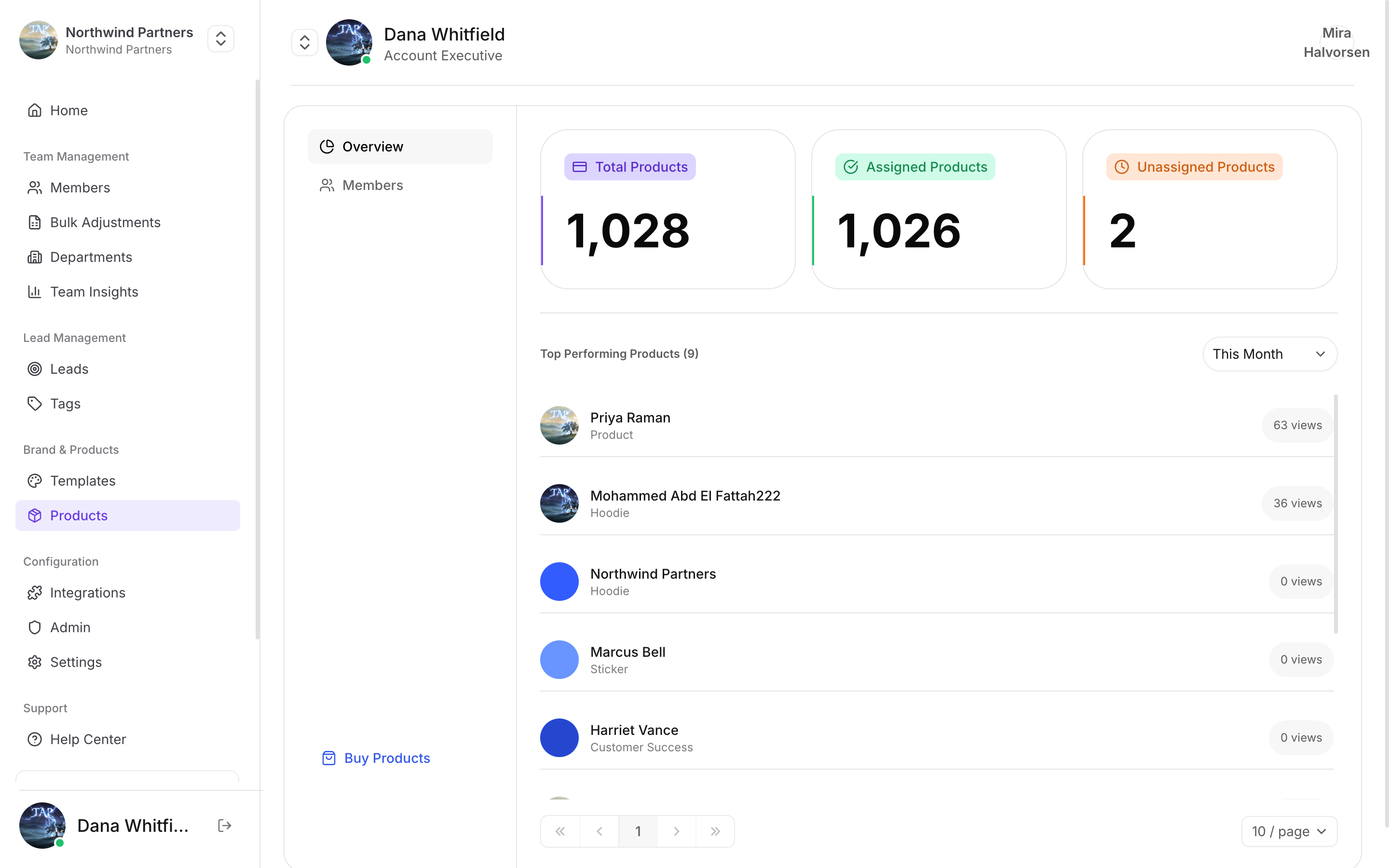
## The overview
| Number | What it tells you |
| - | - |
| Total products | Everything your company owns |
| Assigned products | Linked to a member's profile and working |
| **Unassigned products** | Bought, not linked — doing nothing |
Unassigned is the number worth watching. Every unassigned product is money spent sitting in a drawer, and it usually means a new starter was never walked through activation. Check it after each onboarding round.
## Top performing products
Products are ranked by views, so you can see which formats your team actually uses. This is more useful than it sounds when deciding what to reorder — a keychain that outperforms business cards three to one is telling you something about how your team meets people.
## Tabs
Counts and top performers.
Which products each member holds.
Order more for the team.
Product range and prices live under **Products → Buy Products** in Tap Teams, where they stay current.
## Before an event
Anything unassigned is a product nobody can use. Get it linked, or get it to someone who'll use it.
The Members tab shows who holds what. Someone with no product can still share by QR, but they've lost the fastest method.
Physical products have to ship. Ordering the week before a conference is ordering for the conference after it.
This documentation is built and hosted on [Mintlify](https://mintlify.com), a developer documentation platform.