> ## Documentation Index
> Fetch the complete documentation index at: https://docs.gettap.co/llms.txt
> Use this file to discover all available pages before exploring further.
# Tags
> Label leads so you can slice them by event, interest, or priority later.
Tags are free-form labels you attach to leads. They're how you answer "which of these came from the Berlin conference" three months after the Berlin conference.
## Creating tags
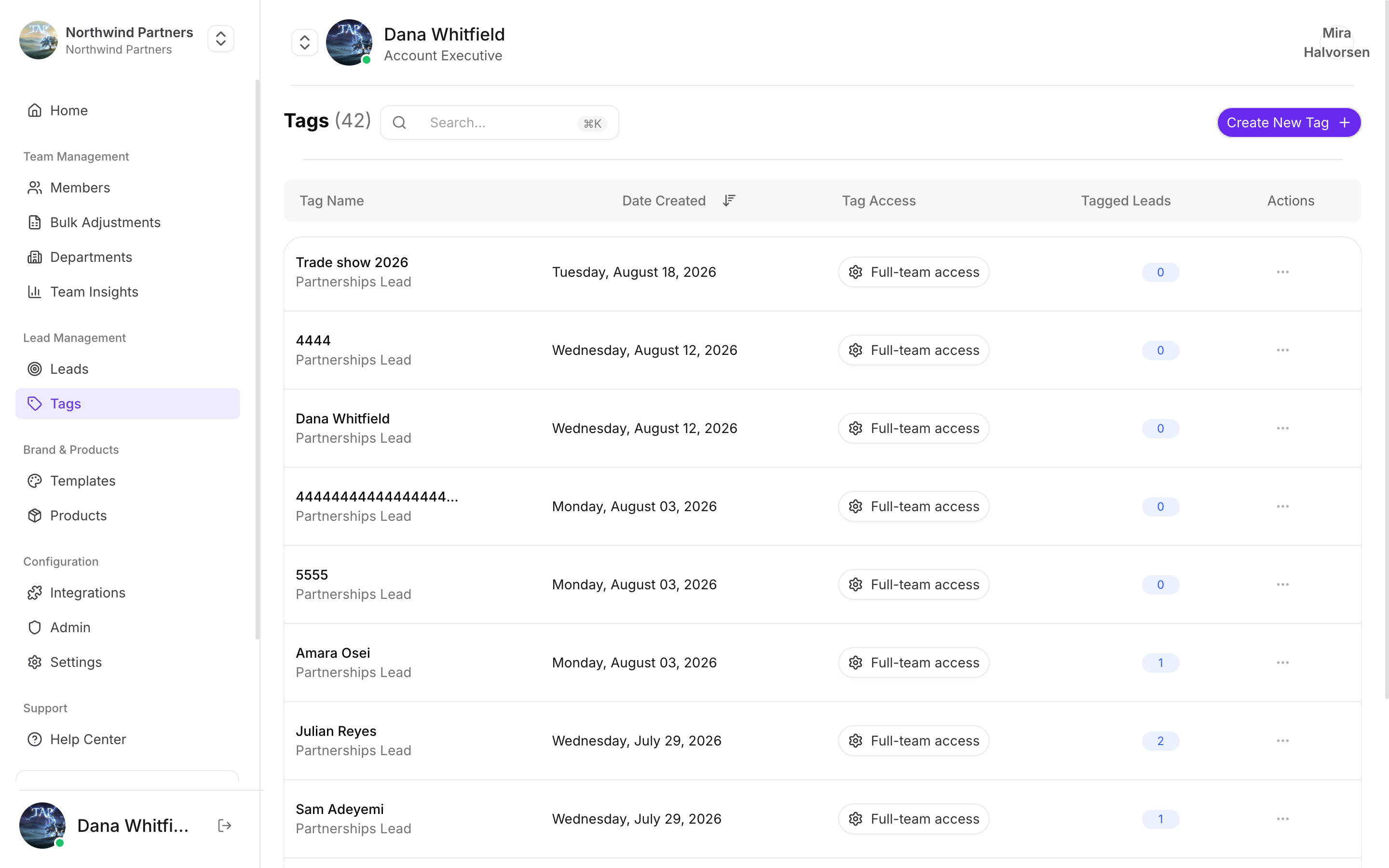
**Tags → Create.** Tags are defined once at team level and then available according to their access level.
## Tag access
Each tag has an access level that decides who can use it:
| Access | Meaning |
| - | - |
| **Full-team access** | Everyone in the company can see and apply the tag |
| **Department access** | Only members of the owning department |
Use full-team access for things everyone needs — event names, priority. Use department access for language that only means something inside one team, so the shared tag list stays short enough that people actually read it.
## What to tag
`saastr-2026`, `webinar-march`. The single highest-value use — it's how you measure whether an event was worth attending.
`enterprise-plan`, `wants-demo`. Lets marketing route follow-up without reading every note.
`hot`, `follow-up-this-week`. Simple triage a rep can apply in three seconds at a booth.
`decision-maker`, `not-a-fit`. Saves someone else chasing a dead lead later.
Tag the **event**, don't ask visitors to type it. A form field asking "which event is this?" wastes the visitor's time and produces twelve spellings of the same event name. Apply the tag afterwards in bulk.
## Applying tags
* **One lead at a time** — open the lead and add tags.
* **In bulk** — select several leads and tag them together. This is the practical way to tag an event: filter to the date range, select all, apply the tag.
See [Bulk adjustments](/en/teams/bulk-adjustments).
## Keeping tags usable
Tag lists rot. A team of twenty generates dozens of near-duplicates within a year unless someone tends them.
Lowercase with hyphens, and a consistent shape for recurring types — `event-berlin-2026` rather than a mix of `Berlin`, `berlin conf`, and `BERLIN2026`. Decide before your first event, not after your fifth.
A tag applied to three leads tells you nothing. If a tag isn't earning its place, merge it into a broader one.
Ten minutes after an event, while you still remember what the tags meant, is the cheapest possible time to clean them up.
## Tags and your CRM
Tags live in Tap. To get them into your CRM, map a tag field like any other — see [Field mapping](/en/integrations/field-mapping). Otherwise use them for filtering and export inside Tap.
This documentation is built and hosted on [Mintlify](https://mintlify.com), a developer documentation platform.