> ## Documentation Index
> Fetch the complete documentation index at: https://docs.gettap.co/llms.txt
> Use this file to discover all available pages before exploring further.
# Templates
> Publish a profile blueprint so every member's profile stays on brand.
A template is a profile blueprint. It fixes layout, branding, and a starting set of links, so a hundred members produce a hundred profiles that look like they came from the same company.
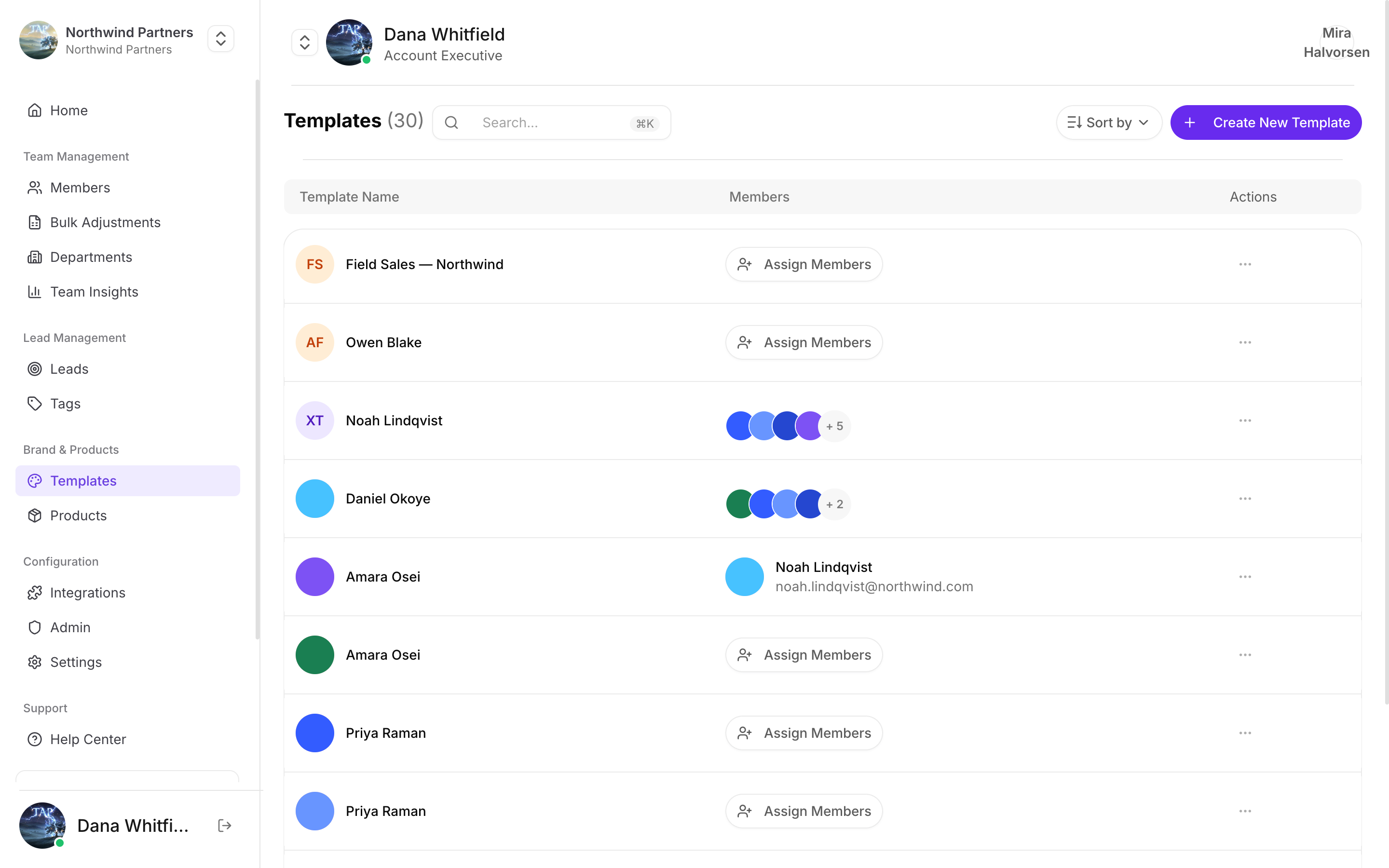
## Creating a template
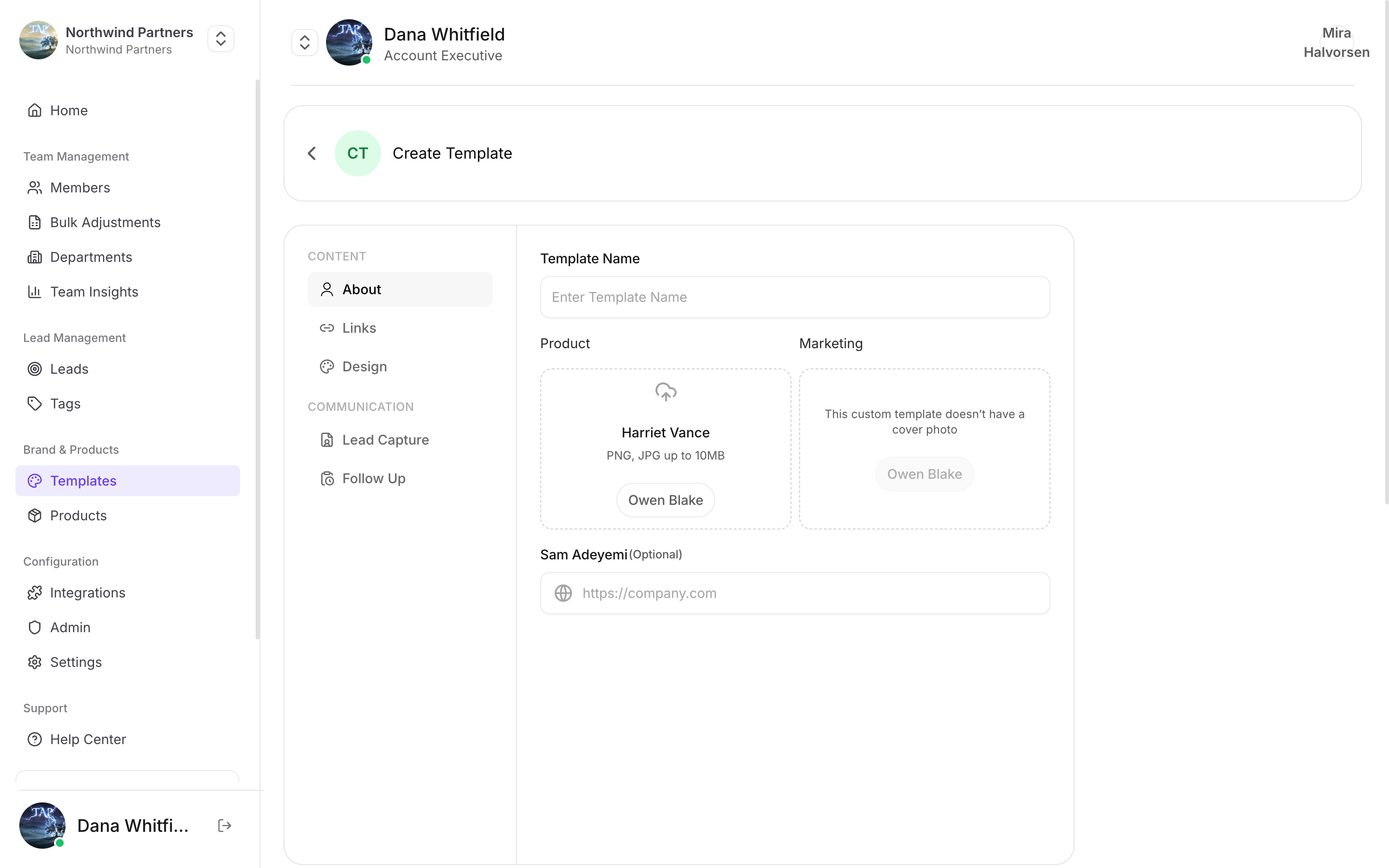
**Templates → Create**.
Logo, cover image, brand colors. This is what makes a profile recognisably yours in the two seconds a visitor looks at it.
Links every member should have — company website, careers page, main LinkedIn. Leave personal links out; members add their own.
A template can define its own lead capture fields. If it does, those fields **override** each member's personal form.
This is the most surprising behavior in templates. A rep who edits their own capture form and sees no change is almost always on a template that defines capture fields. Set them here only when you genuinely need every rep collecting identical data.
Assign the template to members individually, at import time, or by editing existing members.
## What members can still change
Templates and [department permissions](/en/teams/department-permissions) work together and it's worth being clear about the division:
* The **template** sets what a profile starts as.
* The **department** sets what a member may change afterwards.
A template with a locked-down department produces profiles nobody can drift from. A template with an unrestricted department is a starting point members are free to edit.
If you want a field to be identical across the team and stay that way, you need both: set it in the template **and** lock it in the department. Template alone only sets the initial value.
## Updating a template
**Templates → select → Update.**
Changes affect profiles using the template going forward. Values a member has already customised on their own profile are not overwritten — if you change the brand colour and a rep had already changed theirs, theirs stays. Lock the field in the department first if you need the change to stick everywhere.
## Using more than one template
Multiple templates make sense when parts of the business genuinely present differently:
Separate product brands or acquired companies that keep their own identity.
A sales template with a booking link, a recruiting template pointing at the careers site.
A conference-specific template with event branding, retired afterwards.
Different languages or regional legal text.
Two or three templates is usually the sweet spot. Every extra one is another thing to update when the logo changes.
This documentation is built and hosted on [Mintlify](https://mintlify.com), a developer documentation platform.