Connect
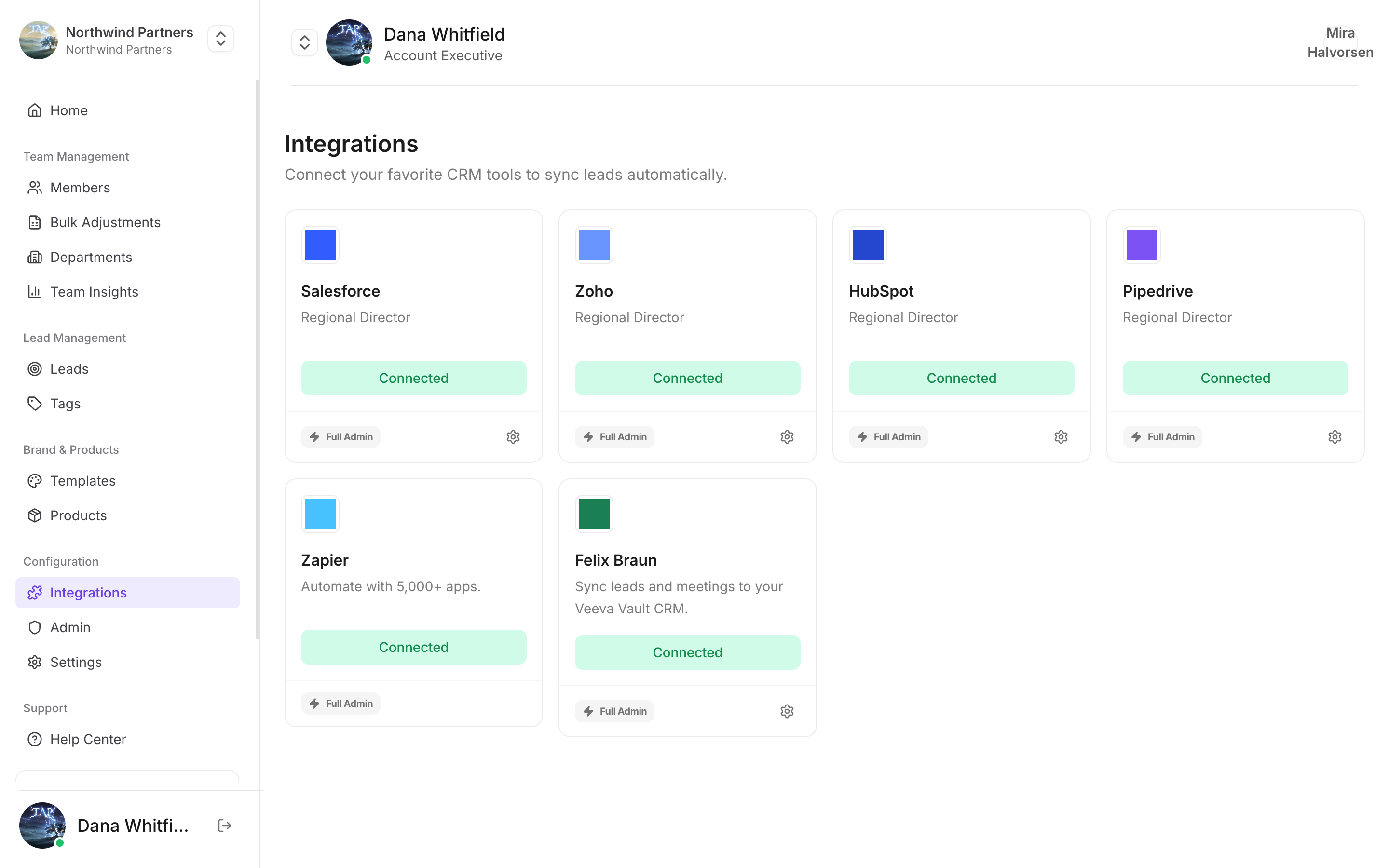
Find it under Integrations in Tap Teams
1
Open the integration
In Tap Teams, go to Integrations → Google Calendar → Connect. Members can also connect their own calendar from the mobile app.
2
Sign in to Google
Choose the Google account whose calendar you want connected. If you have both a work and a personal account signed in, check the account picker — connecting the personal one is a common slip.
3
Approve access
Tap requests read access to your calendar events.
Calendar connections are per member, not per company. Each person connects their own calendar. An admin connecting theirs does not connect the team’s.
What it’s used for
- Matching a recorded meeting to the calendar event at the same time.
- Pulling attendees from the invite, so a meeting has participants without anyone typing them in.
- Giving meeting records a title and context beyond a timestamp.
Notes
Google Workspace admins may need to allow the app
Google Workspace admins may need to allow the app
Some Workspace domains restrict which third-party apps users can authorize. If members hit a blocked-app message from Google, your Workspace admin needs to permit Tap in the admin console.
Only Google Calendar is supported
Only Google Calendar is supported
Outlook and other calendars aren’t currently supported. Meetings can still be recorded and transcribed without any calendar connected — you just match them to leads manually.
Disconnecting doesn't delete past meetings
Disconnecting doesn't delete past meetings
Meetings already recorded and matched keep their details. Disconnecting only stops future matching.