
What syncs
Tap creates Salesforce Leads, not Contacts. That matches how most teams work — a person met at an event is unqualified until someone qualifies them. Convert the Lead to a Contact and Account in Salesforce using your normal process.
Connect
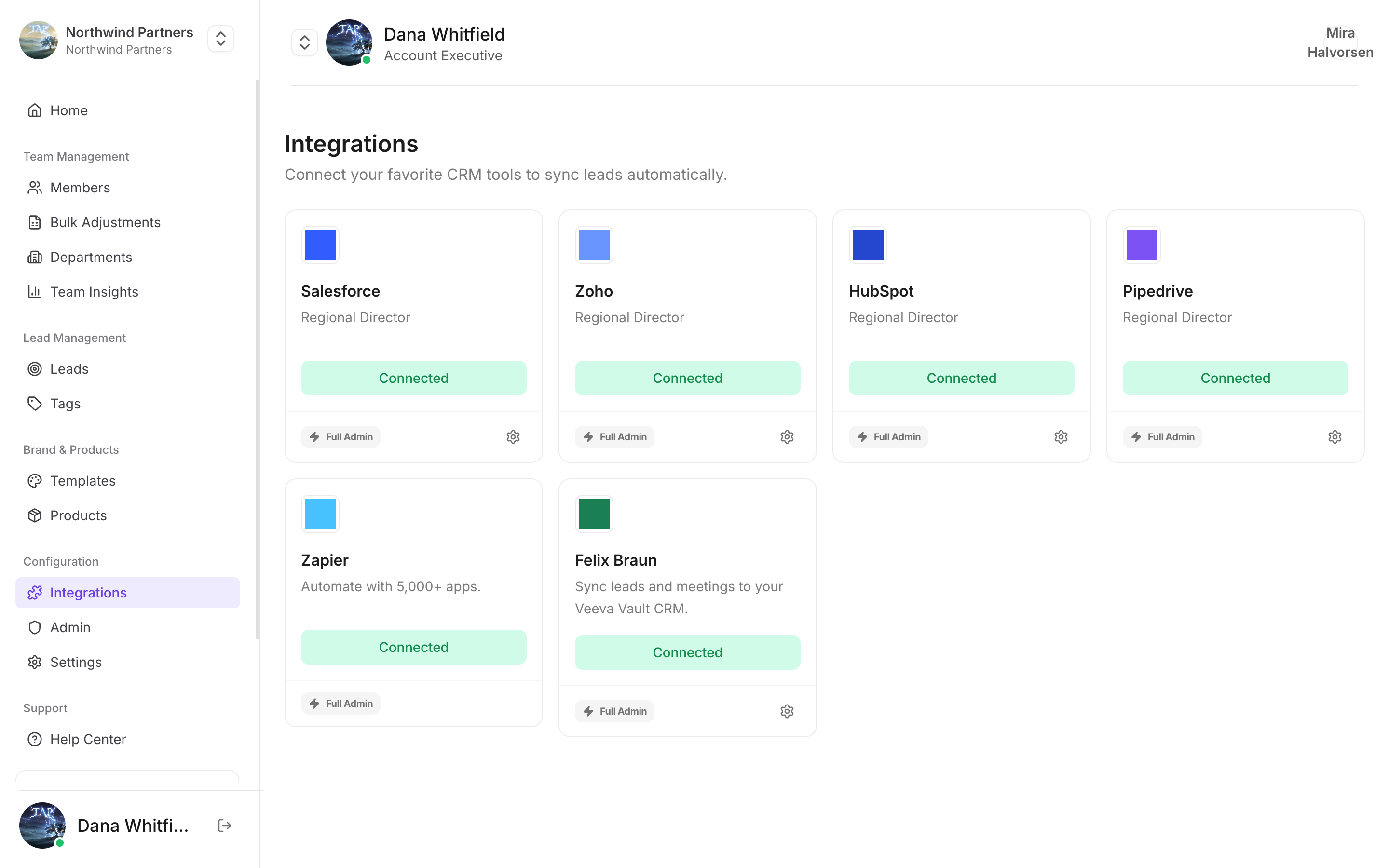
Find it under Integrations in Tap Teams
1
Start the connection
In Tap Teams, go to Integrations → Salesforce → Connect.
2
Sign in to the right org
You’re sent to Salesforce to authorize. Make sure you’re signing into the org you actually want — if you’re currently logged into a sandbox in the same browser, Salesforce will happily authorize the sandbox.
3
Approve access
Approve with a user who can create and edit Leads and Tasks.
4
Map your fields
Standard fields map automatically. Map custom fields by hand — see Field mapping.
Custom fields
Create the field in Salesforce first: Setup → Object Manager → Lead → Fields & Relationships → New. Only then will it appear as a mapping target in Tap.Notes specific to Salesforce
Required fields and validation rules block syncs
Required fields and validation rules block syncs
Salesforce enforces required fields and validation rules on every write. A validation rule demanding a value Tap never sends rejects the whole record. If syncs stopped working right after an admin added a rule, that’s your cause.
Company is required on standard Leads
Company is required on standard Leads
Salesforce’s standard Lead object requires a Company. Map your
company-name capture field to it, and consider making that field required on your capture form — otherwise leads captured without a company are rejected.Owner assignment needs matching emails
Owner assignment needs matching emails
Tap matches the capturing member’s Tap email to a Salesforce user’s email. No match means the org’s default owner, not a failed sync.
Assignment rules still apply
Assignment rules still apply
Tap sets an owner where it can, but your org’s Lead assignment rules run afterwards and may reassign. If ownership looks wrong, check your assignment rules before assuming Tap set it.
Not arriving?
Work through the troubleshooting guide.