
What syncs
Pipedrive separates the human from the opportunity. Tap creates the Person record and a Lead pointing at it, so captured contacts land in your Leads Inbox ready to be converted into Deals rather than cluttering your pipeline.
Connect
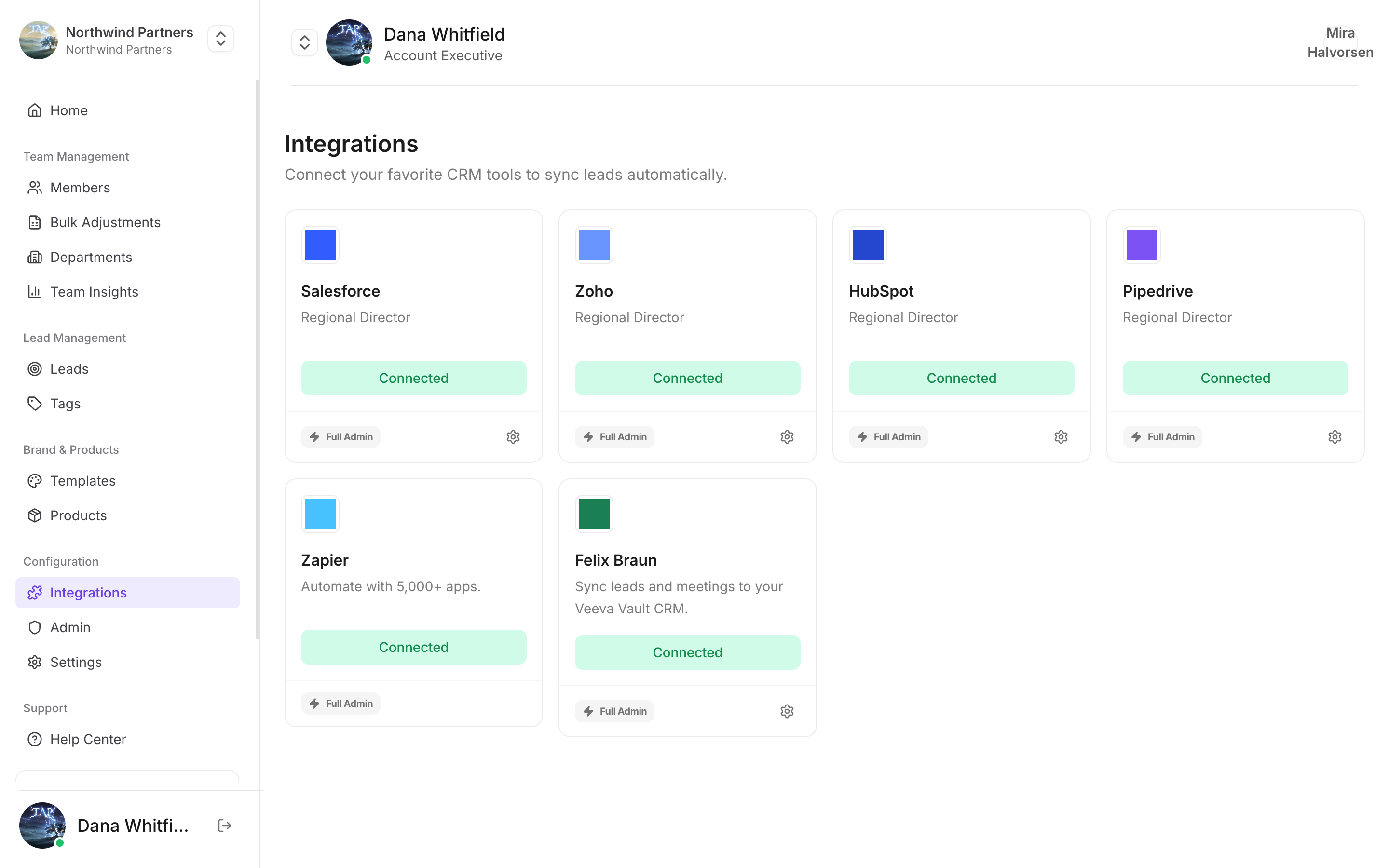
Find it under Integrations in Tap Teams
1
Start the connection
In Tap Teams, go to Integrations → Pipedrive → Connect.
2
Approve access
Sign in to Pipedrive and approve access to persons, leads, and activities.
3
Map your fields
See Field mapping.
Custom fields
Create the field in Pipedrive first: Settings → Data fields → Person → Add custom field. Then map it in Tap. Pipedrive custom fields have internal keys rather than readable names. Tap shows you the readable label, so map by label and don’t worry about the key.Notes specific to Pipedrive
Leads land in the Leads Inbox, not the pipeline
Leads land in the Leads Inbox, not the pipeline
A captured lead does not appear as a Deal in a pipeline stage. Open the Leads Inbox to find it. Reps who only ever look at the pipeline will conclude nothing synced.
Duplicate people are matched by email
Duplicate people are matched by email
A capture whose email already exists updates that Person. Captures without an email always create a new record.
Owner assignment needs matching emails
Owner assignment needs matching emails
Tap matches the capturing member’s Tap email to a Pipedrive user’s email.
Not arriving?
Work through the troubleshooting guide.