
What syncs
Tap creates Zoho Leads, not Contacts. Convert them to Contacts in Zoho through your normal qualification process.
Connect
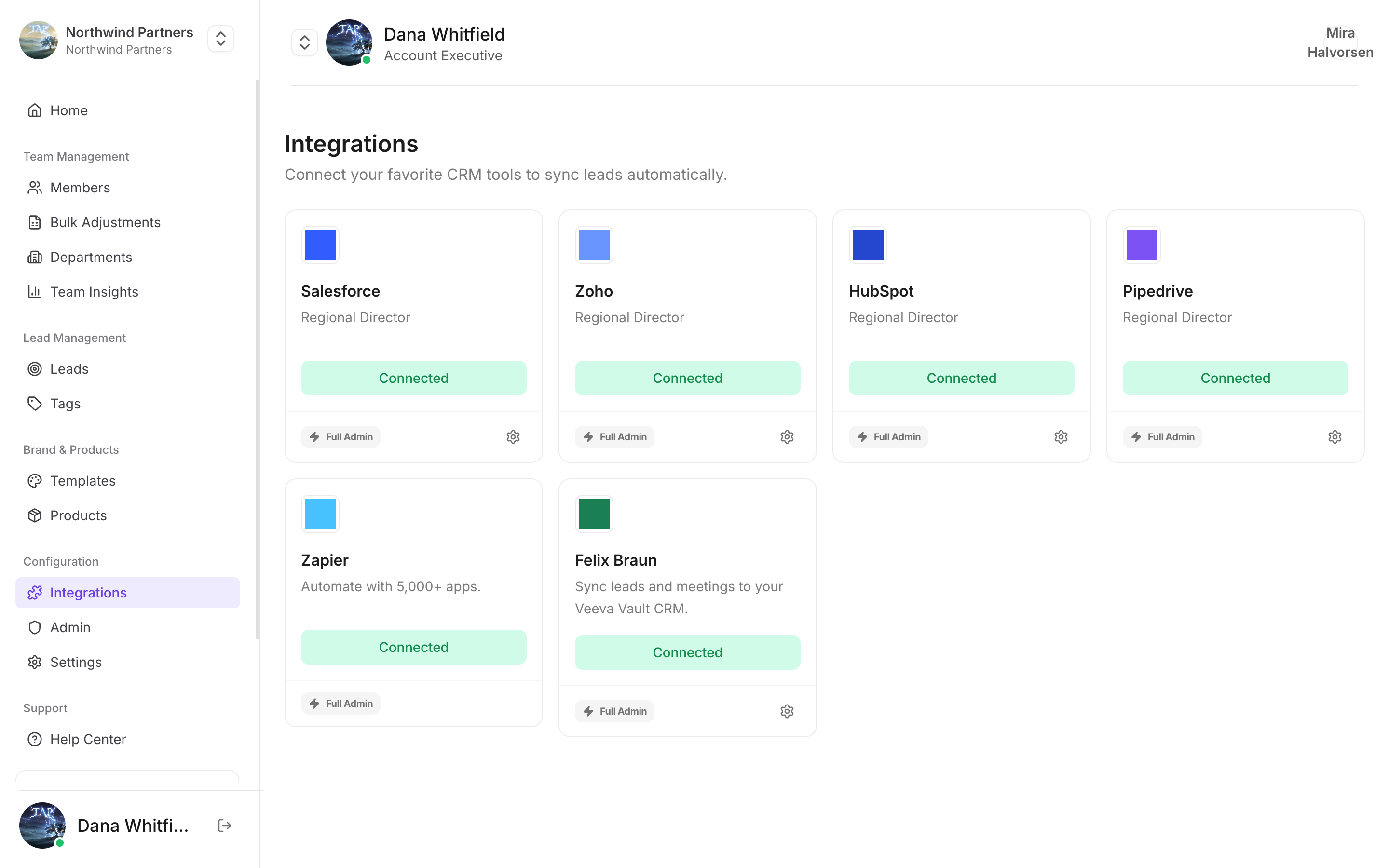
Find it under Integrations in Tap Teams
1
Start the connection
In Tap Teams, go to Integrations → Zoho → Connect.
2
Approve access
Sign in to Zoho and approve. Use a user who can create Leads and Tasks.
3
Map your fields
See Field mapping.
Custom fields
Create the field in Zoho first: Setup → Customization → Modules and Fields → Leads → Create New Field. Then map it in Tap.Notes specific to Zoho
Last Name is mandatory
Last Name is mandatory
Zoho requires Last Name on every Lead. Tap fills it by splitting your
full-name field. A lead captured with a single word as their whole name can be rejected — worth knowing if a batch of leads went missing.Layout rules can reject records
Layout rules can reject records
Fields made mandatory through a Zoho layout are enforced on write. If nothing maps to a mandatory field, every sync fails.
Owner assignment needs matching emails
Owner assignment needs matching emails
Tap matches the capturing member’s Tap email to a Zoho user’s email.
Not arriving?
Work through the troubleshooting guide.