
What syncs
Connect
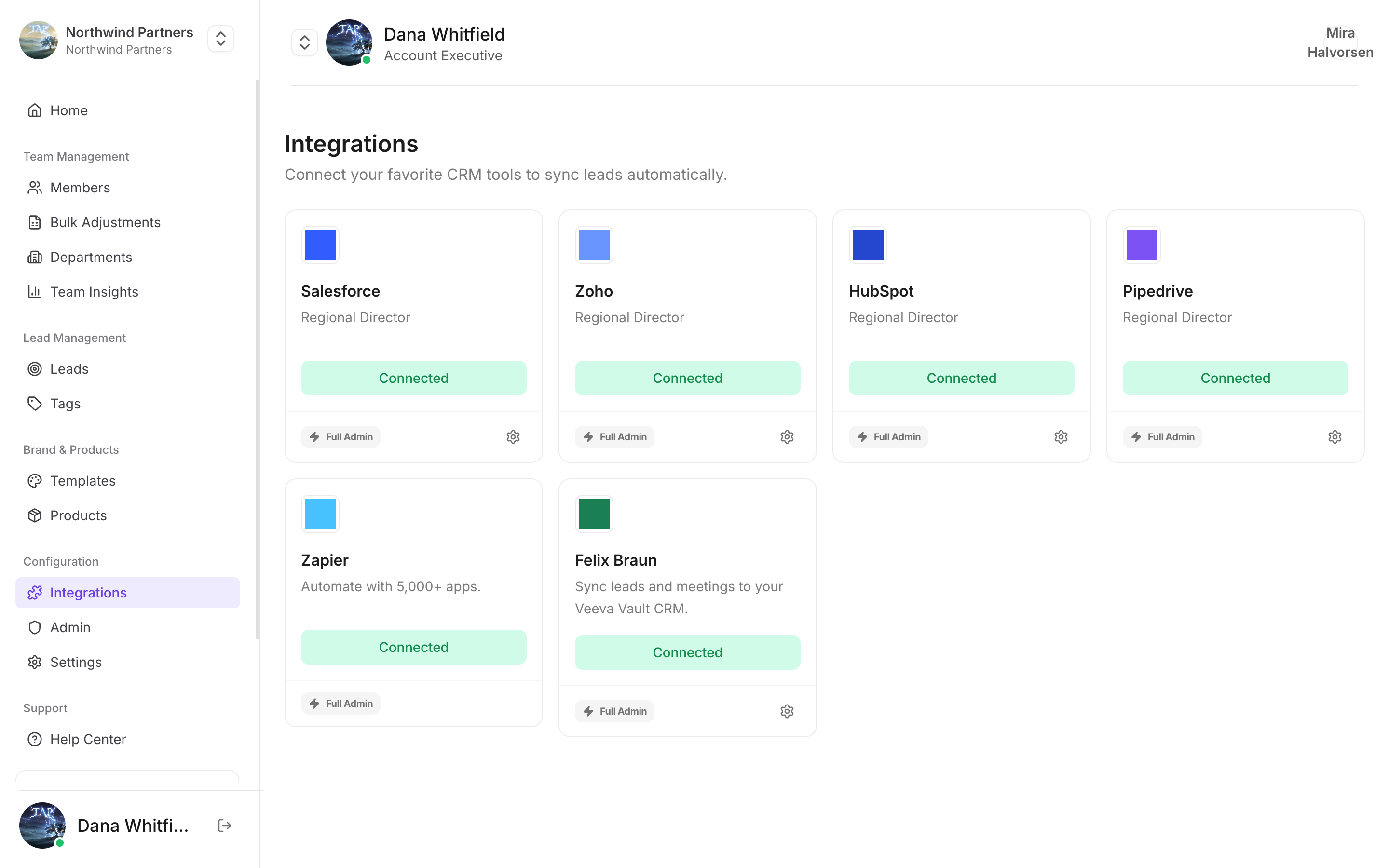
Find it under Integrations in Tap Teams
1
Start the connection
In Tap Teams, go to Integrations → Veeva Vault → Connect.
2
Authorize
Sign in with a Vault account that can create and edit the record types above. A read-only account connects successfully and then fails on the first sync — a pattern worth checking for before an event rather than after.
3
Map your fields
Match your capture fields to Vault fields. See Field mapping.
4
Test with one lead
Capture a test lead and confirm it lands on the right record type with the right owner.
Notes specific to Veeva
Your Vault configuration governs what's accepted
Your Vault configuration governs what's accepted
Vault instances are heavily configured per organisation. Required fields, picklist values, and validation rules differ from company to company, and they’re enforced on write — so a mapping that works in one Vault can be rejected by another. Test against your own instance rather than assuming.
Record types matter
Record types matter
If your Vault uses several record types for contacts or activities, confirm which one Tap is writing to before your first event. Records landing on an unexpected type are easy to miss and tedious to move.
Owner assignment needs matching emails
Owner assignment needs matching emails
Tap matches the capturing member’s Tap email to a Vault user’s email. No match means the default owner rather than a failed sync.
Compliance is still yours
Compliance is still yours
Life-sciences teams usually have rules about what may be recorded about an interaction and for how long. Tap syncing into Vault doesn’t change those obligations — particularly around meeting recordings and consent.
Not arriving?
Work through the troubleshooting guide.