
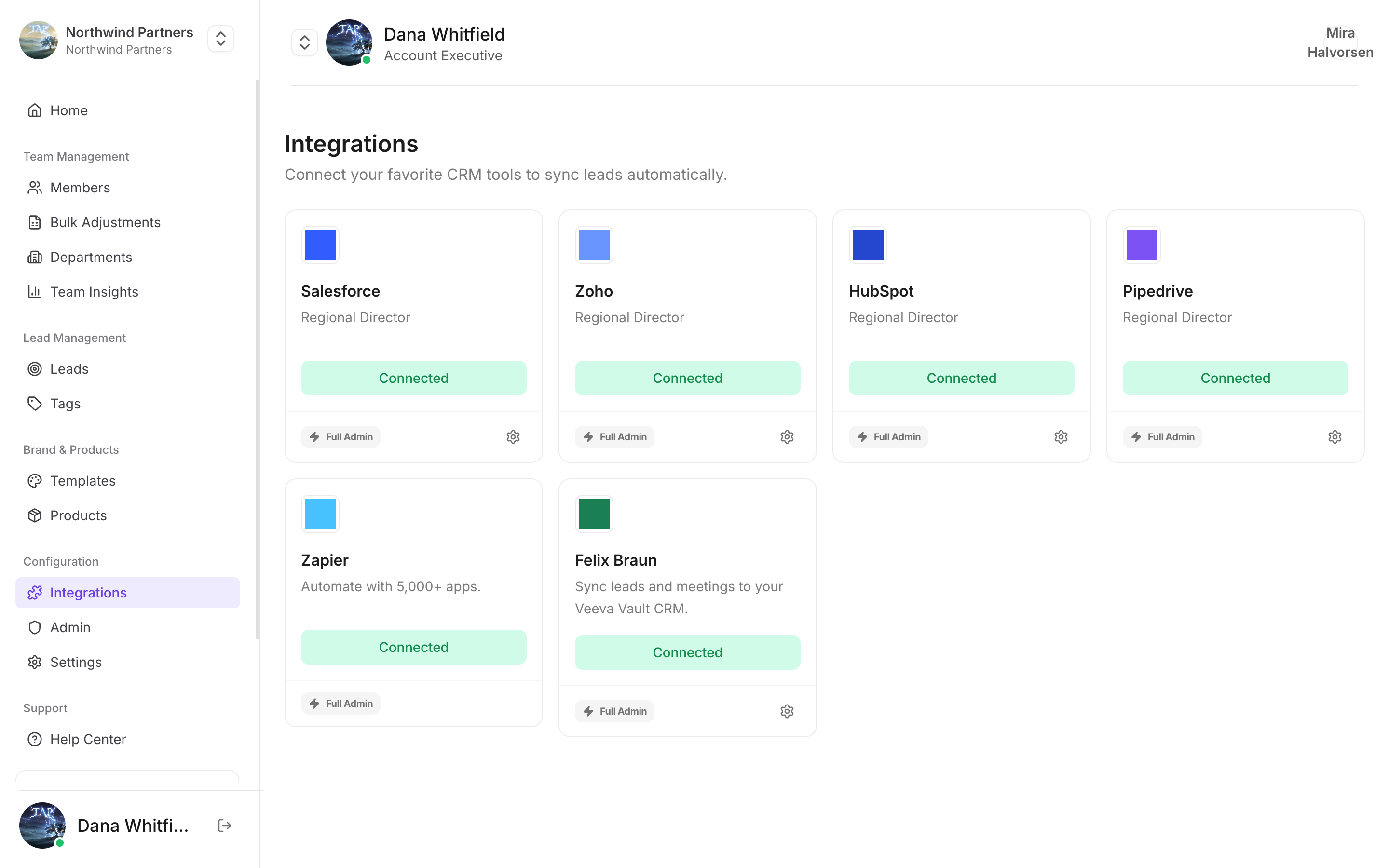
Start here — a connector that isn't connected explains most of it
Nothing is syncing at all
1
Confirm the lead exists in Tap
Open Leads. If the lead isn’t there either, this isn’t an integration problem — the capture didn’t complete. Check Collecting leads.
2
Check the department has CRM access
CRM access is deny-by-default. A department with no explicit grant can’t sync. This is the single most common cause, and it’s invisible unless you go looking — the capture itself succeeds normally.Departments → the department → Permissions → CRM access.
3
Check which connection is being used
A member’s personal CRM connection overrides the company one. If a rep connected their own account during a trial, their leads are going there. See which connection gets used.
4
Check for required CRM fields
If your CRM marks a property as required and nothing is mapped to it, every sync fails. Either map something to it or make it optional in the CRM.
5
Re-authorize the connection
Access can be revoked from the CRM side — a password change, an admin removing the app, or a token expiring. Disconnect and reconnect in Integrations.
Leads sync but fields are empty
The field has no mapping
The field has no mapping
Custom fields don’t map themselves. Open Field mapping and check the field appears with a CRM target next to it.
A field's name was changed
A field's name was changed
Mappings point at a field’s
name, not its label. If someone deleted a field and recreated it with the same label, the new one has a different name and the old mapping no longer matches anything. Re-map it.The type doesn't match
The type doesn't match
Free text pushed into a CRM dropdown or date field is rejected. Sometimes the whole record fails, sometimes just that field is dropped. Match types on both sides.
The visitor left it blank
The visitor left it blank
Worth ruling out before anything else. Open the lead in Tap — if the value is empty there, nothing was captured and the integration is behaving correctly.
Leads land under the wrong owner
Owner assignment matches the capturing member’s Tap email to a CRM user’s email. Mismatched addresses mean no match, and no match means your CRM’s default owner.1
Compare the two email addresses
The member’s Tap email and their CRM login email must be identical.
2
Confirm the CRM user is active
Deactivated CRM users can’t be assigned as owners.
3
Wait a few minutes for newly added users
Owner lookups are cached for about 10 minutes. A CRM user added moments ago may not be assignable yet.
Duplicate contacts appear
Tap matches on email address. Two captures of the same person with two different addresses — work at one event, personal at another — are two different people as far as any CRM is concerned. Use your CRM’s own deduplication tools to merge them. Makingemail a required capture field reduces how often this happens.
Meeting summaries aren’t arriving
The meeting hasn't finished processing
The meeting hasn't finished processing
Transcription and analysis take time after the recording ends. The summary syncs when analysis completes, not when recording stops.
Transcription minutes are exhausted
Transcription minutes are exhausted
A meeting rejected for quota never produces a summary, so nothing syncs. Check plans and limits.
The lead itself never synced
The lead itself never synced
Meeting summaries attach to the contact record. If the contact isn’t in the CRM, there’s nothing to attach to — fix the contact sync first.
Notes aren’t reaching the CRM
Each note tracks its own delivery, so check the badge on the note itself rather than the lead.The note says 'Waiting to sync'
The note says 'Waiting to sync'
It’s a voice note that hasn’t been transcribed yet. There’s nothing to send to the CRM until there is. It will go on its own once transcription finishes.
The note says 'Not in CRM yet'
The note says 'Not in CRM yet'
Use Sync to CRM on the note, or Resync to CRM from the note menu if a previous attempt failed.
Sync Notes is switched off
Sync Notes is switched off
Notes only travel if Sync Notes is enabled on that CRM connection — the lead still syncs, but the note text is stripped from the push. Check Integrations → the connection → Sync Notes.
An edited note still shows the old text in the CRM
An edited note still shows the old text in the CRM
Editing a synced note corrects the CRM record in place — but only for notes filed from September 2026 onward. Older notes have no link back to the record they created, so they’re never duplicated and never corrected. Fix those in the CRM directly.
A note appears twice in HubSpot
A note appears twice in HubSpot
On HubSpot a note is a separate object, so every push creates a new one. If you see two copies of an older note, both were pushed before per-note delivery tracking existed. Delete the stale one in HubSpot; new notes won’t repeat it.