
Activating a product
You can activate by NFC or by QR code. Both link the product to a profile you choose.- By NFC
- By QR code
1
Select the product
Choose the product you’d like to activate.
2
Hold it near your phone
On iPhone the NFC reader is at the top edge. On Android it’s usually in the centre of the back — slide the product around until it connects. Make sure NFC is enabled in your settings.
3
Confirm
Once detected, you get a confirmation that the product is activated and linked to your selected profile.
If your phone doesn’t support NFC, use the QR method — it produces exactly the same result.
Managing a product
Switch profile
Point an existing product at a different profile. The physical card doesn’t change; what it opens does.
Rename
Give it a name you’ll recognise — “black card”, “desk stand”. Essential once you own more than two.
Lock / unlock
Locking prevents changes to the product’s configuration.
Deactivate / reactivate
Deactivating stops it directing visitors to your profile via NFC or its QR code. Reversible.
Tailored Exchange
Show your own branded card on an iPhone that doesn’t have the Tap app, instead of opening the browser. Pro+.
Deactivate or unlink?
These sound similar and do different things: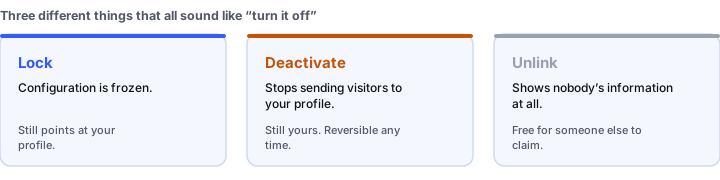
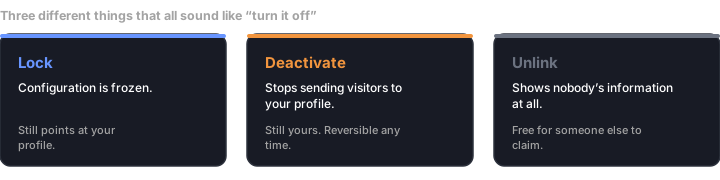
Lock, deactivate, and unlink are not interchangeable
Collect Leads
Each profile can have lead capture switched on or off. With it on, visitors who open your profile see your capture form and you collect their details instead of just handing over yours. Admins can toggle this across many members at once — see Bulk adjustments.Troubleshooting
The product won't activate over NFC
The product won't activate over NFC
Check NFC is enabled, then work on position — top edge on iPhone, centre of the back on Android — moving slowly. Thick or metal cases interfere. If it still won’t connect, use the QR method.
It says this product belongs to someone else
It says this product belongs to someone else
The product is still linked to another account. Whoever holds it needs to unlink it first.
Tapping it opens the wrong profile
Tapping it opens the wrong profile
The product is linked to a different profile than you expect. Switch its profile rather than reactivating from scratch.
Nothing happens when someone taps it
Nothing happens when someone taps it
Check whether the product has been deactivated. That’s the most common cause, and it’s a one-tap fix.
Tailored Exchange is on but Safari still opens
Tailored Exchange is on but Safari still opens
Apple has to approve the card, which can take up to two days. Until then the product behaves normally. See Tailored Exchange.