
Selecting profiles and applying one change across all of them
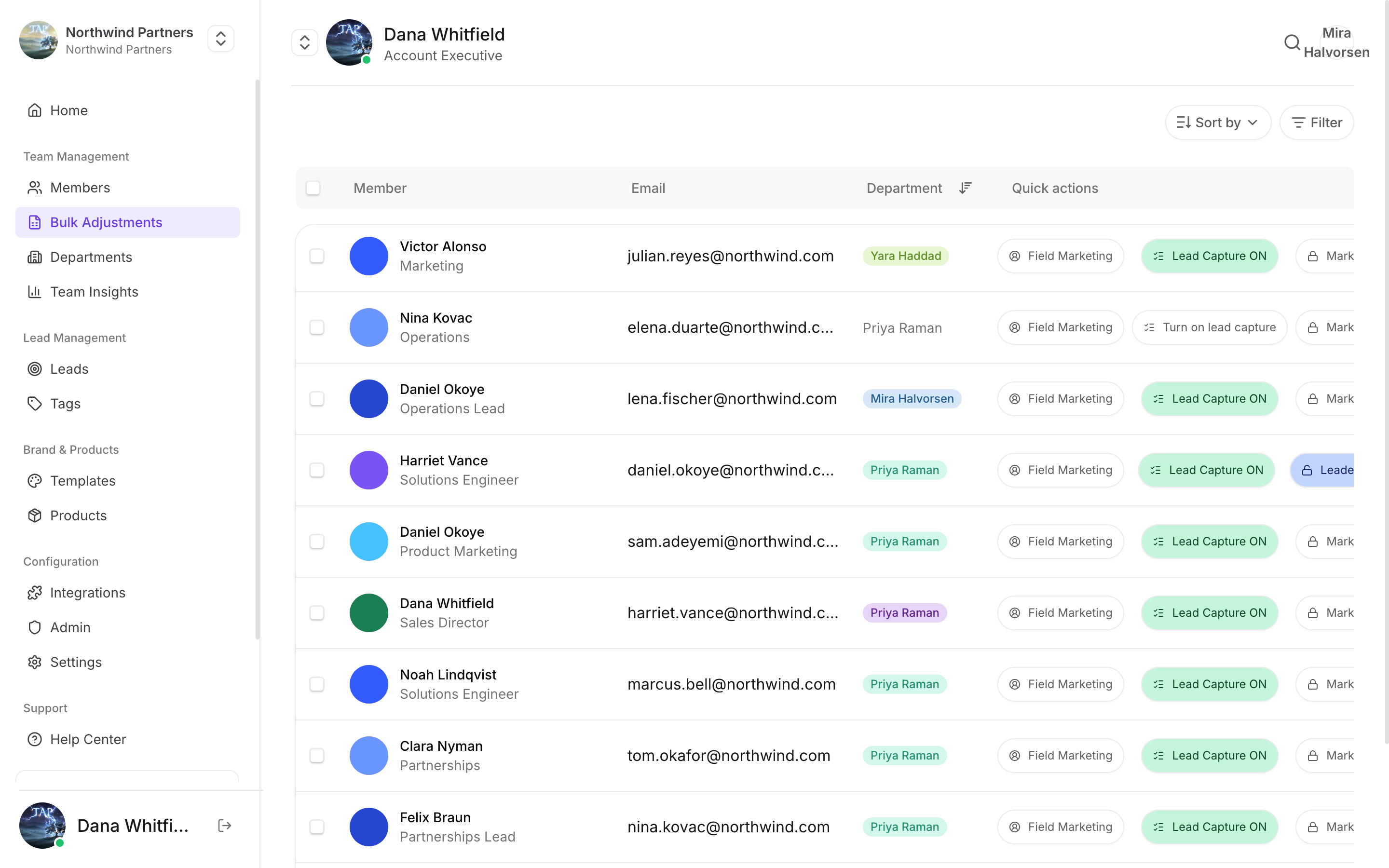
The whole team in one table, with the switches you'd otherwise flip one at a time
Finding the profiles
Go to Bulk adjustments. Search by member name to narrow the list, then select the profiles you want — individually, or select all. The count of selected profiles stays visible as you work, so you always know how wide the change you’re about to make is.What you can change
Locked status
Lock or unlock profiles in bulk. A locked profile can’t be edited by the member it belongs to.
Lead capture
Turn lead capture on or off across the selected profiles — useful when only part of the team is working an event.
Photo
Set the same photo across many profiles. Practical for event staff sharing a company profile rather than personal ones.
Department
Move profiles between departments, which also moves the permissions and CRM connection that apply to them.
Working safely
1
Narrow before you select
Search first, then select all. “Select all” applies to what’s currently listed — selecting all on an unfiltered list is how people accidentally change the whole company.
2
Check the count
Read the selected count before confirming. If you meant to change a department of twelve and it says 140, stop.
3
Try a small batch first
For a change you haven’t made before, apply it to two or three profiles, check the result, then do the rest.
Bulk changes are not undoable as a single action. Reversing one means selecting the same profiles and applying the opposite change, which is only possible if you can still identify exactly who was in the original selection.
Typical uses
Before an event
Before an event
Enable lead capture across everyone attending, and confirm they’re in a department with CRM access.
After an event
After an event
Turn lead capture off for temporary staff, or lock their profiles so nothing changes while the leads are being worked.
Reorganising the team
Reorganising the team
Move a group into a new department in one pass rather than editing each member.
Brand refresh
Brand refresh
Push a new shared photo across profiles that use one.