
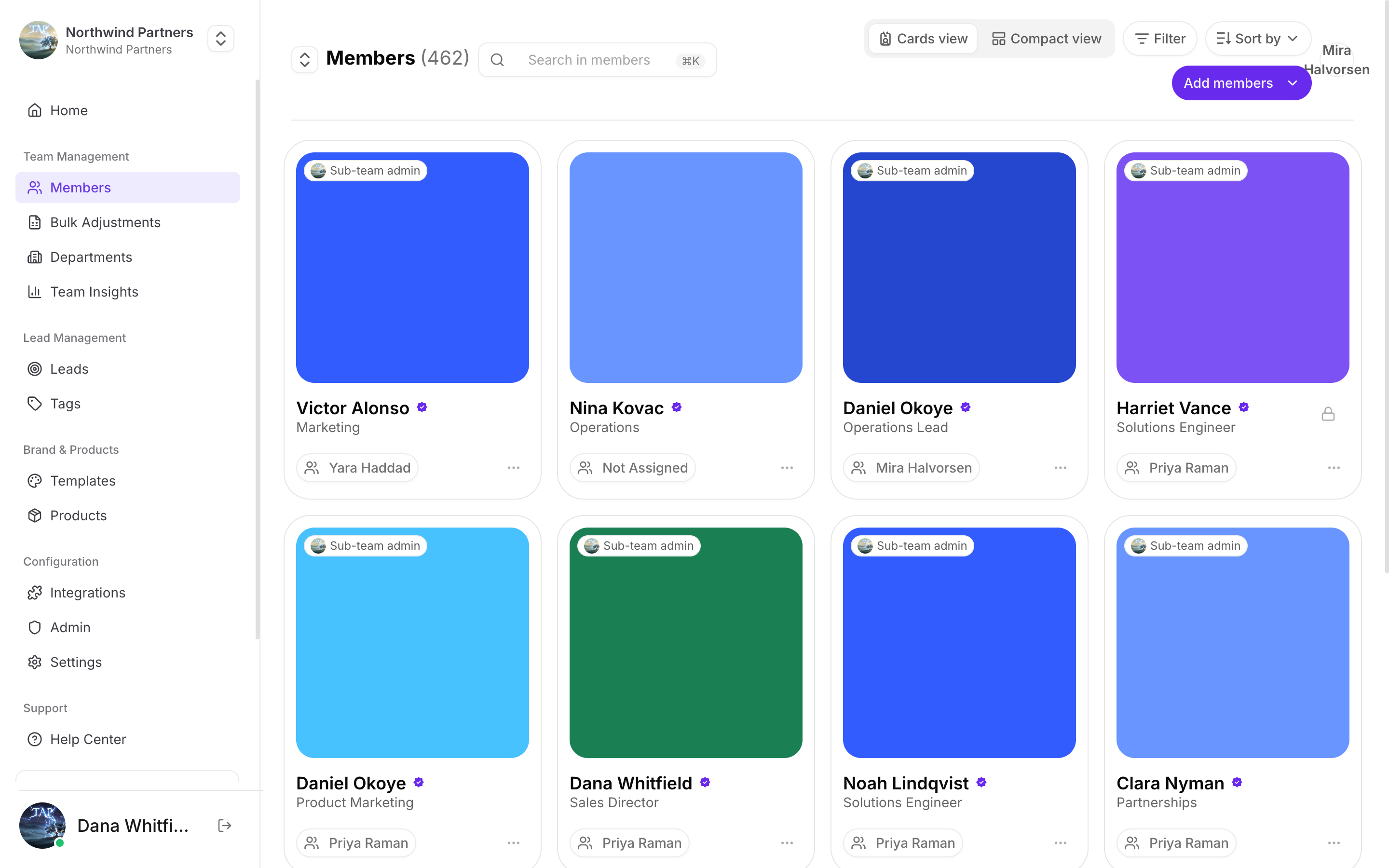
The badge in the corner of each card shows what that person can change
Adding one member
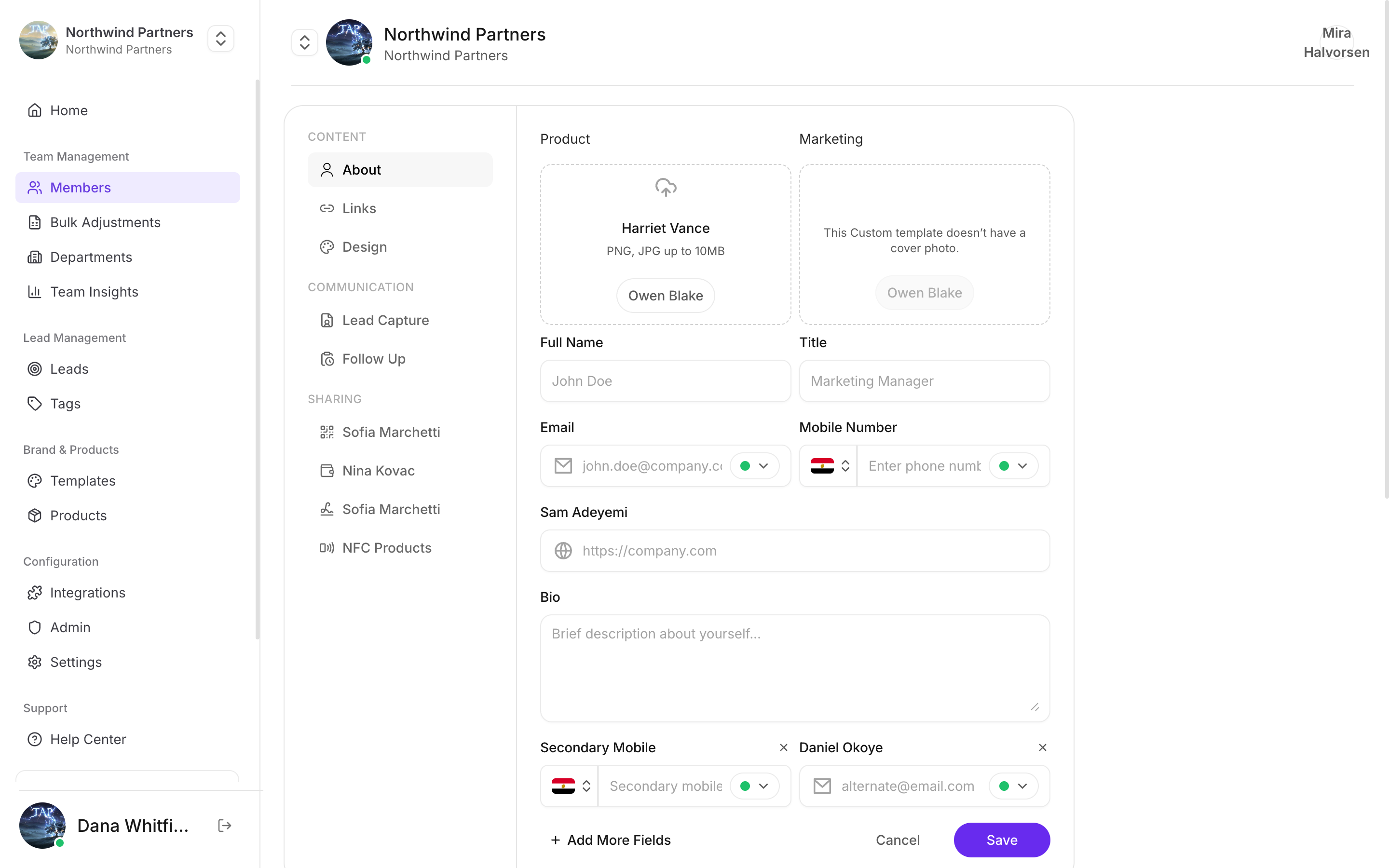
Creating a member
1
Open the form
Go to Members → Create.
2
Enter their details
Name and email at minimum. The email is both their login and the address the invitation goes to.
3
Assign a department
The department decides what they’re allowed to edit and which CRM they can reach. See Department permissions.
4
Assign a template
The template shapes their profile so it matches your brand from day one. See Templates.
5
Send the invitation
They receive an email, set a password, and complete their profile in the mobile app.
Adding a member and building their card, start to finish
Customising the invitation
Admin → Invite Members lets you write the invitation once and send it to whichever members or departments you choose. You control the subject, the message, and the call-to-action button.Sending invitations — and resetting a password when someone is locked out
Editing a member’s card
Members → select the member.A tour of the card editor, section by section
Content
About — name, title, email, phone, company website, bio, secondary contacts. Links and Design.
Communication
Lead Capture — the form visitors fill in. Follow Up.
Sharing
QR Code, Digital Wallets, Email Signature, and NFC Products.
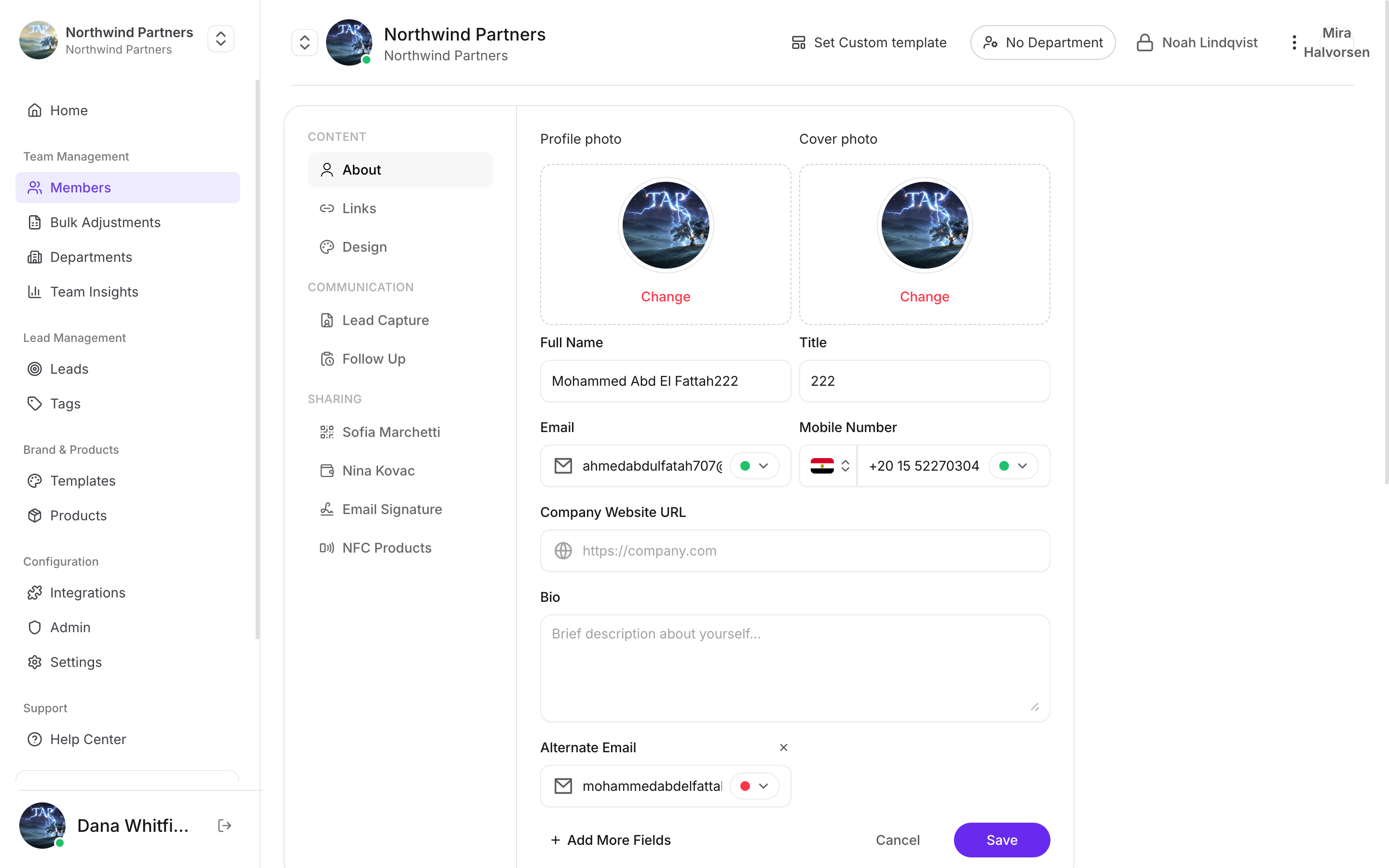
Their content, how they capture leads, and every way the card gets shared
Moving a member to another department applies that department’s permissions immediately, including which CRM connection their leads flow through. If a rep’s leads suddenly start arriving in a different CRM account, check whether they were moved.
Members who haven’t accepted
Invited members appear in the list before they accept. If someone never received their invitation:Check the address for typos
Check the address for typos
The most common cause by a wide margin. Correct it and re-send.
Ask them to check spam
Ask them to check spam
Invitations from an unfamiliar domain sometimes get filtered.
Re-send the invitation
Re-send the invitation
Open the member and re-send. Old invitation links can expire.
Removing a member
Removing a member revokes their access immediately. Before removing someone who’s leaving, it’s worth checking whether they had a personal CRM connection. If they did, their leads were flowing into their own CRM account rather than the company’s, and you may need to export those leads before the account goes away.Roles
Each member card carries a badge showing what that person can change.What each role can reach, and where the badge comes from
A sub-team admin’s badge names the department they run — Sub-team admin · Sales, or · Sales +1 when they run more than one. That can differ from the department they belong to, which stays on its own pill at the bottom of the card.
Sub-team admins only exist when Department Admin Management is switched on in company settings. With it off, every admin is a full-team admin.
Next: bulk import
Add a whole team from a spreadsheet.